
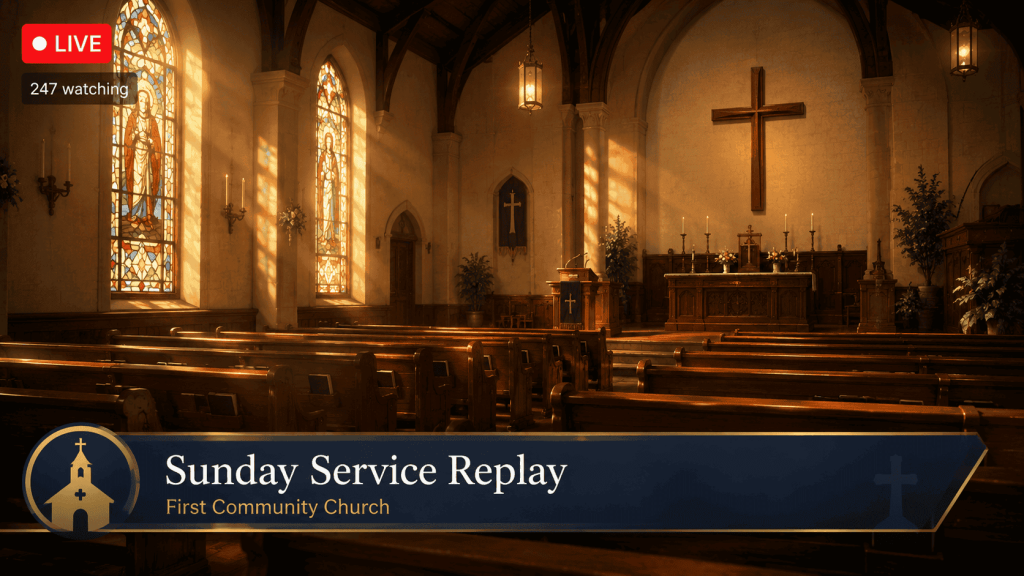

Most churches that try to stream their services give up within a month — not because the content isn’t good, but because the tech is unreliable.
The stream drops during the sermon. The volunteer who manages the laptop goes on holiday. The PC overheats at 2am during a worship loop that was supposed to play all night.
This guide shows you how to run a genuine 24/7 live stream for your church — one that plays worship music between services, replays last Sunday’s sermon, and keeps your congregation connected even when nobody is physically in the building.
Why Churches Are Going 24/7 on YouTube Live
A church YouTube channel that only posts Sunday uploads gets seen on Sunday. A church that runs a continuous church live stream on YouTube gets seen every hour of the week.
The reasons churches are moving to 24/7 streaming go beyond convenience:
- Members in different time zones can tune in whenever the loop brings the service back around.
- Worship music loops keep the channel active and accumulate watch time — which YouTube’s algorithm rewards.
- Sermon replays reach people who missed Sunday or want to revisit a message.
- New visitors who find the channel organically are more likely to return when there’s always something live.
The churches doing this well aren’t spending thousands on broadcast equipment. They’re using cloud streaming software that runs automatically — no volunteer required.
Before setting up your stream, make sure you understand how pre-recorded content works on YouTube Live. Read our full guide on how to stream pre-recorded videos live on YouTube — it covers the technical foundation this guide builds on.
What Your Church Needs Before Going Live
1. Your Video Content
For a church 24/7 live stream, you typically want a mix of content in a single loop video:
- A full recent sermon recording (or a highlight cut)
- Worship music — either live recordings or licensed audio with slides
- Lower-thirds with your church name, website, and service times
- A simple title card or “Coming Up Next” screen between segments
The whole loop video should run at least 60–90 minutes before repeating. This prevents anyone tuning in from experiencing an abrupt restart within a short viewing session.
2. Music Rights
This is the most common mistake in church live streaming. Even if your church has a CCLI license for in-building worship, that license does not automatically cover YouTube live streaming. You need a separate streaming license — CCLI offers one called the “Streaming Plus” license specifically for this purpose.
Without it, YouTube Content ID will claim or mute your stream. Sort this before you go live.
3. Your Final Export File
- Format: MP4
- Video codec: H.264
- Audio codec: AAC, 192–320 Kbps stereo
- Resolution: 1920×1080
- Bitrate: 4,500 Kbps
The 3 Ways to Run a 24/7 Church Live Stream
OBS Studio (PC Method)
OBS is free and familiar to many church tech volunteers. You load your service recording as a media source, enable loop, and stream to YouTube using your RTMP key.
The problem is your PC has to stay on — all week, every week. One crash at midnight, and the stream is offline until someone notices Monday morning. For a church with limited volunteer capacity, this is a real burden.
VPS + FFmpeg (Technical Method)
A Virtual Private Server running FFmpeg streams your video from the cloud, so no local PC is needed. It’s reliable when set up correctly, but requires Linux command-line knowledge to configure and maintain — beyond the skill set of most church volunteers.
StreamKite (Recommended for Churches)
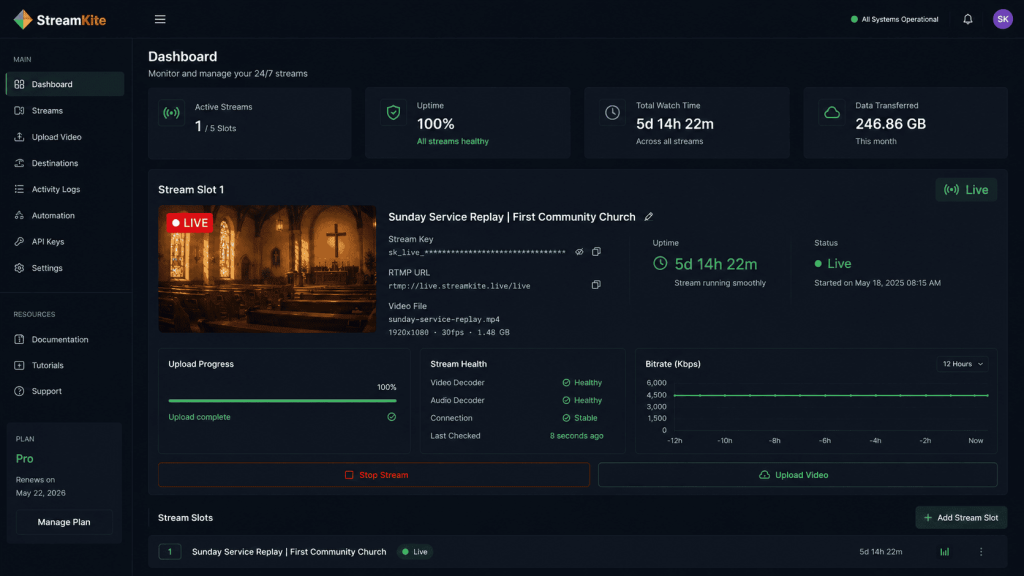
StreamKite is the easiest path to a 24/7 church live stream on YouTube. Upload your video, enter your stream key, and hit Start. The stream runs in the cloud with automatic reconnection if YouTube drops the connection.
No PC stays on. No volunteer needs to be on call. The church stream runs while the building is locked.
Step-by-Step: Setting Up Your Church Stream with StreamKite
Step 1 — Enable YouTube Live Streaming
In YouTube Studio, go to Create → Go Live. If this is your channel’s first live stream, YouTube requires phone verification and enables live streaming within 24 hours.
Step 2 — Create a Persistent Stream in YouTube Studio
- Go to YouTube Studio → Go Live → Manage
- Click Create Stream
- Title it clearly: e.g., “Sunday Service Replay | First Community Church”
- Select Persistent stream key
- Set visibility to Public
- Copy your stream key
Step 3 — Get Your StreamKite PassKey
Visit streamkite.live and get a PassKey for your church. No email account required — enter it on the login page and you’re directly inside your streaming dashboard.
Step 4 — Upload Your Church Video
Open your stream slot, click Upload Video, and select your MP4 file. Once uploaded to StreamKite’s servers, your local machine is completely out of the picture.
Step 5 — Paste Your Stream Key and Start
Paste the YouTube stream key into your slot settings, configure your resolution and bitrate, and click Start Stream.
Within 60 seconds, your church channel will show as live on YouTube. Open YouTube Studio’s Live Control Room and confirm all health indicators are green before walking away.
Making Your Church Stream Look Professional
Add service times to the stream description. Viewers who discover your channel via the live stream should immediately know when your next in-person service is. Include address, service times, and a welcome message in the YouTube stream description.
Use chapters in the description. Break up your loop video with timestamps: “0:00 — Worship | 22:00 — Sunday Sermon | 1:04:00 — Closing Prayer.” This helps viewers jump to the content they’re looking for.
Pin a welcome comment. Pin a comment that greets new viewers, provides your church’s website, and invites them to subscribe. First impressions from new visitors often come via the live chat.
Enable live chat moderation. Assign a volunteer as a part-time chat moderator, even if it’s just for Sunday hours. Active chat makes the stream feel like a real community, not a broadcast into the void.
Common Mistakes in Church Live Streaming
Streaming copyrighted hymns without a streaming license. CCLI’s standard SongSelect license does not cover YouTube live streaming. Get the CCLI Streaming Plus license or use public domain hymns with original arrangements.
Using a one-time event key instead of a persistent key. One-time keys expire. Your stream will go offline when the event window ends, even if the video is still looping. Always use a persistent stream key for automated church streaming.
Leaving the stream title generic. “Live Stream” tells YouTube nothing. Use the church name, the content type, and relevant keywords. YouTube uses stream titles for search indexing.
Not testing before Sunday. Always run a 15-minute test stream privately before your first public broadcast. Check audio levels, video quality, and stream health in YouTube Studio before the congregation tunes in.
Comparison: OBS vs VPS vs StreamKite for Church Streaming
| Feature | OBS Studio | VPS + FFmpeg | StreamKite |
|---|---|---|---|
| PC required | ✅ Yes | ❌ No | ❌ No |
| Volunteer tech skill needed | Medium | High | None |
| Auto-reconnect | ❌ No | Manual only | ✅ Yes |
| Crash recovery | ❌ Manual | ❌ Manual | ✅ Automatic |
| Runs while building is closed | ❌ No | ✅ Yes | ✅ Yes |
| Setup time | 30–60 min | 1–3 hours | Under 5 min |
| Best for churches? | Short sessions only | Tech teams only | ✅ Yes |
FAQ — 24/7 Live Streaming for Churches
1. Does our church need special permission to stream sermons on YouTube?
Not for original sermon content — you own that. The licensing concern is for worship music. If your service includes copyrighted songs, you need a YouTube-specific streaming license (such as CCLI Streaming Plus) in addition to any in-building performance rights you already hold.
2. Can we loop last Sunday’s sermon for the whole week?
Yes. This is one of the most effective formats for church 24/7 live streaming. The sermon plays on loop all week, allowing members who missed Sunday and new visitors to tune in anytime. You simply replace the video with next week’s sermon after each service.
3. Will YouTube penalize our channel for streaming pre-recorded content?
No. YouTube permits pre-recorded content in live streams. The only rule is that you cannot falsely represent pre-recorded content as a live event in a deceptive way (e.g., claiming “Breaking News Live” when it’s a replay). A church stream clearly presented as a service replay is fully within YouTube’s policies.
4. Do we need to keep a church computer running 24/7 for the stream?
Only if you use OBS or other desktop streaming software. With a cloud streaming platform like StreamKite, the stream runs on remote servers and your local hardware can be completely off. This is the practical choice for churches that don’t have IT staff on call around the clock.
5. How much does it cost to run a 24/7 church live stream?
OBS is free but requires a PC running constantly (plus electricity costs). A VPS runs $5–10/month. StreamKite’s entry plans are affordable for small congregations. The total cost of a cloud-based setup is often less than a single month of electricity for a 24/7 desktop streaming setup.
6. Can multiple services be included in one loop video?
Yes. You can compile a full week’s loop video that includes Sunday morning worship, Sunday sermon, midweek Bible study, and music between segments — all in one MP4 file. The whole file loops seamlessly on StreamKite.
7. What should our church stream when there’s no service content available?
A worship music loop with Scripture verses as slides is the most common fallback. Some churches run ambient recordings of their sanctuary — candles, soft music, a cross in frame — as a prayer and reflection stream. It’s simple to produce and performs well for extended viewer sessions.
8. How do we handle live chat moderation on a 24/7 automated stream?
Enable YouTube’s built-in chat filtering for spam and profanity as a baseline. Assign one or two volunteers as part-time moderators during peak hours (Sunday mornings, evenings). For off-peak hours, pinned messages and slow mode manage engagement without requiring constant supervision.
Start Your Church’s 24/7 Live Stream Today
Your congregation deserves a church that’s reachable every day of the week — not just Sunday morning.
A 24/7 loop stream keeps your services, worship music, and message running continuously, reaching members who missed a service, visitors exploring your church online, and anyone searching YouTube for spiritual content in your area.
StreamKite lets you run a 24/7 live stream from any device without keeping your PC on. No technical knowledge needed. Setup takes under 5 minutes.
Start your 24/7 loop stream today
Run a nonstop YouTube live stream from any device.
No PC required. No technical knowledge needed.
