The top meditation channels on YouTube have one thing in common: their streams never stop.
While other creators upload once a week and wait, meditation and wellness channels run continuous streams — healing frequencies, sleep music, nature sounds — playing around the clock, collecting watch time every minute of the day.
This guide shows you exactly how meditation channels run nonstop music streams on YouTube and how you can set up the same system without keeping your PC on or hiring a tech team.
Why Nonstop Streaming Works So Well for Meditation Channels
Meditation content has one of the highest average view durations on YouTube. A viewer putting on a “8-hour sleep music” stream isn’t watching for 3 minutes — they’re leaving it on all night.
That behavior creates enormous watch time per viewer, which YouTube’s algorithm uses to recommend your channel more broadly. Channels with consistent live streams also rank differently in YouTube search than upload-only channels — the “Live” badge draws attention and click-throughs.
Beyond the algorithm, the practical case is clear: a meditation channel 24/7 stream is always available for someone who needs it right now — at 2am, on a stressful Tuesday afternoon, or during a long flight. You’re not dependent on when you published last.
Before building this out, it helps to understand the streaming mechanics underneath. Read our full guide on how to stream pre-recorded videos live on YouTube — it explains the RTMP loop system that makes all of this possible.
What You Need to Start a Meditation Nonstop Stream
1. Your Audio Content
The music or soundscape is the core of your stream. Your options fall into three categories:
Original compositions. If you produce music — binaural beats, ambient pads, nature recordings, solfeggio frequencies — your own content is the cleanest path. No licensing complications, full monetization rights, and a unique sound that builds a recognizable channel identity.
Licensed meditation music. Artists on Bandcamp, Soundcloud, and platforms like Epidemic Sound and Artlist license music for YouTube streaming. Always confirm the license explicitly covers YouTube live streaming and not just uploads — these are treated differently by YouTube and by most license agreements.
Royalty-free and Creative Commons. Sources like Free Music Archive and ccMixter have ambient and meditation music available under open licenses. Read each track’s specific license — CC BY requires attribution in the description, CC BY-NC prohibits any monetization.
2. Your Visual Layer
Meditation streams are visually minimal by design — and that’s a strength, not a limitation. You don’t need animation or motion graphics. What works:
- A slow, seamless looping nature video (forest, ocean, rain, clouds)
- A static illustrated scene with a subtle particle or light effect
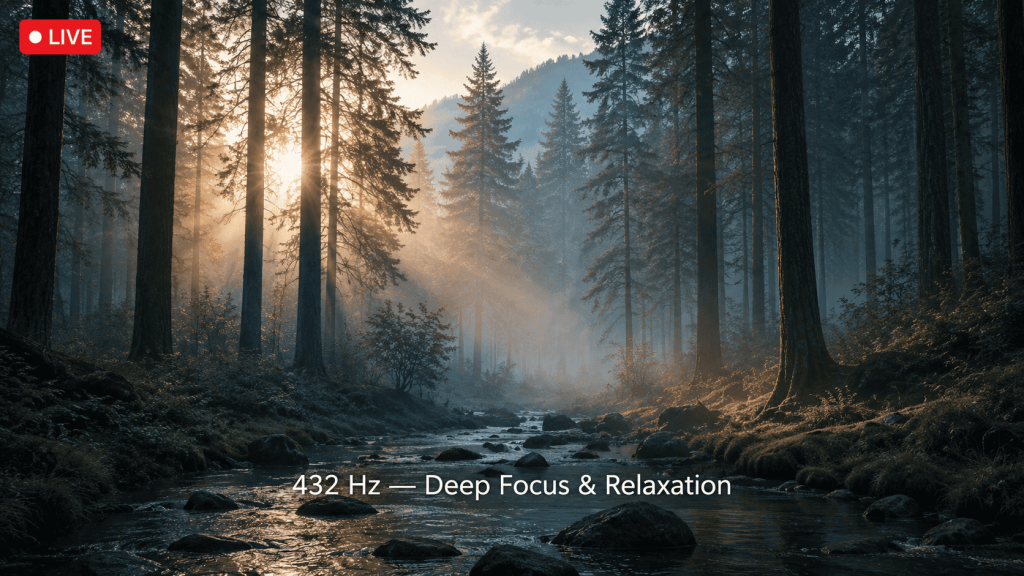
- Frequency text on screen (e.g., “432 Hz — Deep Relaxation”) as a simple overlay
- Abstract slow-motion visuals — candlelight, flowing water, smoke
Keep the visual distraction-free. The viewer should forget the screen is there within the first minute.
3. Your Final Loop Video
Combine audio and visual into a single MP4 file. For a meditation nonstop music stream on YouTube:
- Format: MP4, H.264 video, AAC audio
- Resolution: 1920×1080
- Video bitrate: 3,000–4,500 Kbps (visually static content compresses efficiently)
- Audio bitrate: 320 Kbps stereo (audio quality is everything for this niche)
- Duration: 2–8 hours minimum before the loop restarts
Long loop durations matter especially for sleep and meditation streams — a viewer leaving music on for 6 hours should never hear the track restart.
The 3 Methods Meditation Channels Use to Stream Nonstop
OBS Studio — Possible But Not Sustainable
OBS can loop a video file and stream it to YouTube using the Media Source with loop enabled. It works for short runs but it’s not built for weeks-long unattended streaming. Crashes happen. The PC overheats. A power cut ends everything. For a channel built around reliability and calm, an OBS crash at 3am is the opposite of the brand.
VPS + FFmpeg — Powerful for Technical Creators
Running FFmpeg on a cloud server gives you a true 24/7 nonstop music stream with no local hardware dependency. The setup is complex — SSH, Linux commands, crash recovery scripting — but it’s the approach most large established meditation channels use once they’ve outgrown simpler tools.
StreamKite — The Easiest Route for Most Creators
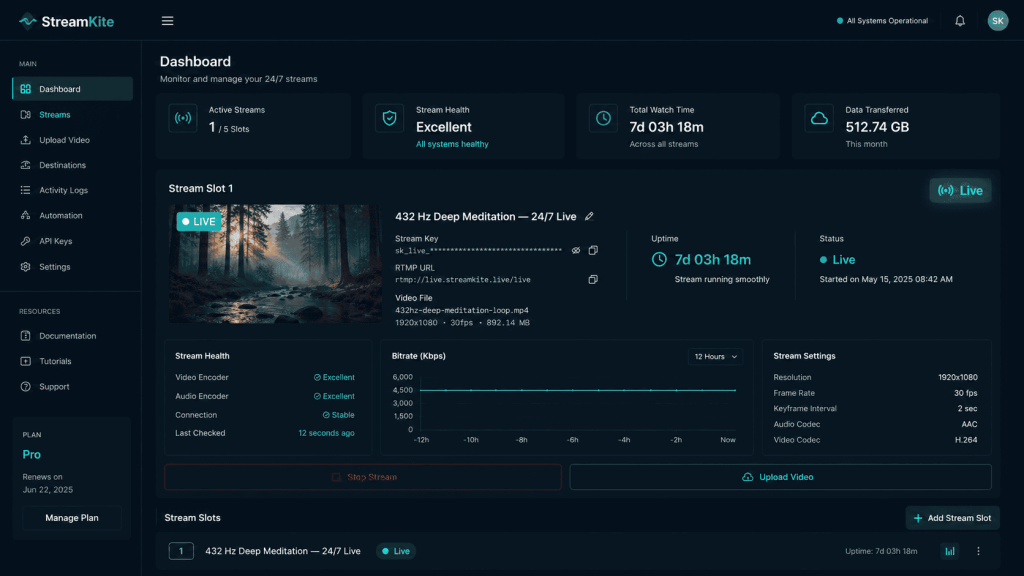
StreamKite handles everything: upload your video, paste your YouTube stream key, and the stream runs in the cloud indefinitely. Auto-reconnect, no PC running, accessible from your phone. For a meditation channel creator focused on making great audio content rather than managing servers, this is the obvious choice.
Step-by-Step: Setting Up Your Meditation Nonstop Stream
Step 1 — Prepare Your YouTube Channel
Enable live streaming in YouTube Studio (Create → Go Live). If this is your first time, verification takes up to 24 hours. While you’re setting up, optimize your channel description with keywords like “meditation music,” “healing frequencies,” “sleep music,” and “24/7 relaxing music.”
Step 2 — Create a Persistent Stream Key
In YouTube Studio, go to Go Live → Manage → Create Stream. Name it clearly — something like “432 Hz Deep Meditation Music 24/7 Live.” Select Persistent stream key. Copy the key.
Set your stream category to Music and your audience to Not made for kids unless your content specifically targets children.
Step 3 — Set Up StreamKite
Go to streamkite.live, get your PassKey, and log into the dashboard. Open your stream slot and upload your loop video MP4. Once uploaded, paste your YouTube stream key into the slot settings.
Step 4 — Configure and Launch
Set resolution to 1080p, bitrate to 4,500 Kbps (or 3,000 Kbps if your visual is mostly static — it’ll look identical with less data). Hit Start Stream.
Check YouTube Studio’s Live Control Room within the first 5 minutes. Confirm the Stream Health panel is all green and audio is coming through cleanly. Then step away and let it run.
Growing Your Meditation Channel With a 24/7 Stream
Title for search intent. The most-searched meditation stream titles on YouTube follow a formula: “[Frequency or benefit] + [type of music] + [use case].” Examples: “528 Hz Healing Frequency — Deep Sleep Music 24/7 Live,” “Theta Waves Study Music — Focus Stream 24/7.” Include these in your stream title and description.
Write a complete description. YouTube’s algorithm reads your description for context. Include: what the music is, what frequency (if applicable), benefits, and keywords like “meditation music live stream,” “nonstop relaxing music,” “sleep sounds,” and “healing music YouTube.”
Post a new stream with fresh content monthly. Replace your loop video with a new recording each month. This gives subscribers a reason to come back and tells YouTube your channel is actively maintained — not abandoned.
Use community posts to drive traffic to your stream. Announce when you update your stream content. “New sleep music just added to our 24/7 stream” with a link gives subscribers a reason to click, which boosts the stream’s visibility in YouTube’s recommendation engine.
Common Mistakes Meditation Channel Creators Make
Using copyrighted ambient samples without clearance. Many meditation tracks sample nature recordings, Tibetan bowls, or ambient elements from commercial libraries. Even if the final mix is yours, the source samples may carry rights claims. Use original recordings or properly licensed sample libraries.
Setting audio bitrate too low. Meditation streams are an audio-first experience. A 128 Kbps AAC stream sounds noticeably compressed for headphone listeners. Use 320 Kbps stereo at minimum — the file size difference is worth it.
Making loop videos too short. A 30-minute loop on an 8-hour sleep stream means the audio restarts 16 times per night. Viewers notice, and many will leave. Go for 2–4 hours minimum for sleep and deep meditation content.
Ignoring the thumbnail. Even live streams have thumbnails. A blurry screenshot or generic image tanks click-through rate. Create a custom thumbnail that communicates the mood instantly — cool blues, soft light, minimal text.
OBS vs VPS vs StreamKite for Meditation Channels
| Feature | OBS Studio | VPS + FFmpeg | StreamKite |
|---|---|---|---|
| PC required 24/7 | ✅ Yes | ❌ No | ❌ No |
| Auto-reconnect | ❌ No | Manual | ✅ Yes |
| Setup difficulty | Medium | Hard | Very Easy |
| Ideal loop duration | Limited by RAM | Unlimited | Unlimited |
| Best for meditation channels | Short sessions | Tech-savvy only | ✅ Yes |
| Cost | Free + electricity | ~$5–10/mo | Affordable |
FAQ — Streaming Nonstop Meditation Music on YouTube
1. Can I monetize a 24/7 meditation music live stream?
Yes, if your channel is in the YouTube Partner Program and your content meets ad suitability requirements. Meditation music channels frequently earn through mid-roll ads on streams, channel memberships, and Super Thanks. Ensure all music is either original or properly licensed, as unlicensed content will trigger Content ID claims and redirect revenue to the rights holder.
2. What frequency content performs best on YouTube?
Streams titled around specific frequencies consistently perform well: 432 Hz, 528 Hz, 40 Hz (gamma waves), 963 Hz, and binaural beats (delta, theta, alpha). Sleep music and study/focus music are the two highest-volume search categories. Start with one of these before expanding to other formats.
3. How do I prevent Content ID from claiming my meditation stream?
Use original compositions or music with a license that explicitly permits YouTube live streaming and commercial use. If you’re using a producer’s beats, ask them directly whether their music is registered with Content ID, and if so, whether they can whitelist your channel. Get this in writing before going live.
4. How long should a meditation loop video be?
For sleep streams: 6–8 hours minimum. For focus/study streams: 2–4 hours. For general ambient streams: 1–2 hours. The goal is that no viewer in a typical use session should ever hear the loop restart. A restart is a jarring interruption that breaks the meditative state and often ends the viewing session.
5. Do I need special audio equipment to make meditation music?
Not necessarily. Many successful meditation channels produce entirely in software — digital synthesizers, DAW plugins like Omnisphere or Serum, and free tools like VCV Rack for modular synthesis. A good pair of studio headphones and a quiet room can produce professional-quality ambient content without any hardware.
6. Can I run multiple meditation streams simultaneously?
Yes, with multiple YouTube channels and multiple StreamKite slots. Some creators run separate 24/7 streams for sleep music, study music, and healing frequencies across different channels — each targeting a specific search audience and building its own subscriber base independently.
7. How do I update my stream with new music without taking it offline?
With StreamKite, you can replace the loop video in your slot settings. The platform handles the transition. You can also schedule the replacement to coincide with a low-traffic period (e.g., midday your audience’s local time) to minimize disruption to active listeners.
8. What’s the best stream thumbnail style for meditation channels?
High-performing meditation thumbnails follow a consistent aesthetic: dark or cool-toned background, a single calming visual element (moon, mountains, water, soft light), and minimal bold white text stating the frequency or benefit. Avoid cluttered thumbnails with multiple text lines. Calm, minimal, and specific out-performs busy and generic every time.
Start Your Meditation Channel’s Nonstop Stream Today
The meditation niche on YouTube rewards consistency above everything else. A channel that is always live, always available, always playing is the one that builds a real audience of loyal listeners.
StreamKite lets you run a 24/7 live stream from any device without keeping your PC on. No technical knowledge needed. Setup takes under 5 minutes.
Start your 24/7 loop stream today
Run a nonstop YouTube live stream from any device.
No PC required. No technical knowledge needed.