

You don’t need a $200/month dedicated server to run a 24/7 YouTube live stream. The actual compute requirement for streaming a pre-recorded video loop is modest — and the market for cloud servers in 2026 means you can get reliable, always-on infrastructure for less than the cost of leaving a light bulb running.
This guide covers three tiers of low-cost 24/7 streaming server setup — from a $6/month VPS to a $55 one-time Raspberry Pi to a managed platform that costs less than both and requires zero configuration.
What a “Streaming Server” Actually Needs to Do
Before speccing a server, understand the actual workload. For a 24/7 pre-recorded loop stream to YouTube, your server needs to:
- Read a video file from storage
- Either copy the stream (if pre-encoded at target settings) or re-encode it
- Push an RTMP stream to YouTube’s ingest server at your target bitrate
- Do this continuously, recovering automatically from any interruptions
That’s it. If your video file is pre-encoded at your target bitrate and resolution (H.264, CBR, 4,500 Kbps), step 2 becomes a simple file copy — extremely low CPU demand. A server that would struggle to run a web browser can handle this workload with CPU to spare.
This is why the hardware requirements for a dedicated 24/7 streaming server are much lower than most people expect. Read the full architectural explanation in our guide on how to stream pre-recorded videos live on YouTube if you haven’t already.
Option 1: Budget VPS on Hetzner, DigitalOcean, or Vultr
A VPS (Virtual Private Server) is a rented cloud computer that runs 24/7 in a datacenter. For a loop streaming workload, the minimum viable VPS specification is surprisingly modest.
Minimum spec for a 1080p 24/7 streaming VPS:
- CPU: 1 vCPU (single core is sufficient for remux streaming)
- RAM: 512MB–1GB
- Storage: At least 5–10GB (for your loop video file)
- Network: 100 Mbps+ port, unlimited or at least 200GB monthly transfer
- OS: Ubuntu 22.04 LTS (most common, best FFmpeg support)
Cost (as of 2026 pricing):
- Hetzner Cloud (CX11): ~€4–6/month, 2 vCPU, 4GB RAM, 20GB SSD, 20TB transfer
- DigitalOcean (Basic Droplet): ~$6/month, 1 vCPU, 1GB RAM, 25GB SSD, 1TB transfer
- Vultr (Cloud Compute): ~$6/month, 1 vCPU, 1GB RAM, 25GB SSD, 2TB transfer
Any of these plans is more than sufficient for a single 1080p loop stream. Hetzner offers the best price/performance ratio for European datacenter locations; DigitalOcean and Vultr have strong North American and Asian datacenter options.
Setup steps (all three providers are similar):
- Create a VPS with Ubuntu 22.04 LTS
- SSH into the server:
ssh root@YOUR_SERVER_IP - Install FFmpeg:
apt update && apt install -y ffmpeg screen - Upload your pre-encoded loop video via SCP:
scp loop.mp4 root@YOUR_SERVER_IP:/root/loop.mp4 - Create a systemd service for automatic start and crash recovery:
# /etc/systemd/system/stream.service
[Unit]
Description=YouTube 24/7 Loop Stream
After=network.target

[Service]
ExecStart=/usr/bin/ffmpeg \
  -re -stream_loop -1 \
  -i /root/loop.mp4 \
  -c:v copy -c:a copy \
  -f flv rtmp://a.rtmp.youtube.com/live2/YOUR_STREAM_KEY
Restart=always
RestartSec=5

[Install]
WantedBy=multi-user.target- Enable and start:
systemctl enable stream && systemctl start stream - Check status:
systemctl status stream
The Restart=always directive means if FFmpeg exits for any reason, systemd automatically restarts it within 5 seconds. This is the crash recovery layer that makes the VPS approach reliable for unattended 24/7 operation.
Option 2: Raspberry Pi as a Permanent Streaming Server
A Raspberry Pi 4 (4GB model, ~$55 one-time) running at home is a low-cost streaming server for creators who already have reliable home internet.
Power cost comparison (24/7 operation, US average electricity rate):
- Desktop PC (gaming): ~$15–22/month
- Mid-range laptop: ~$2–5/month
- Raspberry Pi 4: ~$0.54–0.76/month
The Pi pays for itself vs a running laptop in approximately 15 months, then runs essentially for free. The tradeoff vs a VPS: you’re still dependent on your home internet connection’s reliability. A VPS in a datacenter is significantly more stable for uptime-critical channels.
Recommended Raspberry Pi configuration for 24/7 streaming:
- Model: Raspberry Pi 4 (4GB or 8GB)
- OS: Raspberry Pi OS Lite (headless — no desktop)
- Storage: USB 3.0 SSD for the loop video (faster and more reliable than the microSD card)
- Connection: Wired ethernet (essential — Pi WiFi is not suitable for 24/7 stream reliability)
- Setup: Same systemd FFmpeg service as the VPS method above
Option 3: StreamKite — The Managed Alternative
Both the VPS and Raspberry Pi methods require you to manage the infrastructure: updates, SSH access, log monitoring, crash investigation. For a creator whose focus is content, this maintenance overhead is real time cost.
StreamKite is the managed alternative. The platform provides the streaming server infrastructure, the FFmpeg-equivalent streaming pipeline, the auto-reconnect logic, and the uptime monitoring — without any of the server administration burden.
StreamKite vs DIY server cost comparison:
- Setup time: StreamKite 5 minutes vs VPS 1–3 hours
- Ongoing maintenance: StreamKite none vs VPS periodic updates/monitoring
- Technical skill needed: StreamKite none vs VPS Linux knowledge required
- Reliability: StreamKite managed infrastructure vs VPS depends on your configuration
- Home internet dependency: StreamKite none vs Raspberry Pi yes
For creators who are comfortable with Linux and want maximum control, the VPS approach is excellent value. For creators who want a reliable 24/7 stream without a server administration side project, StreamKite is the right choice.
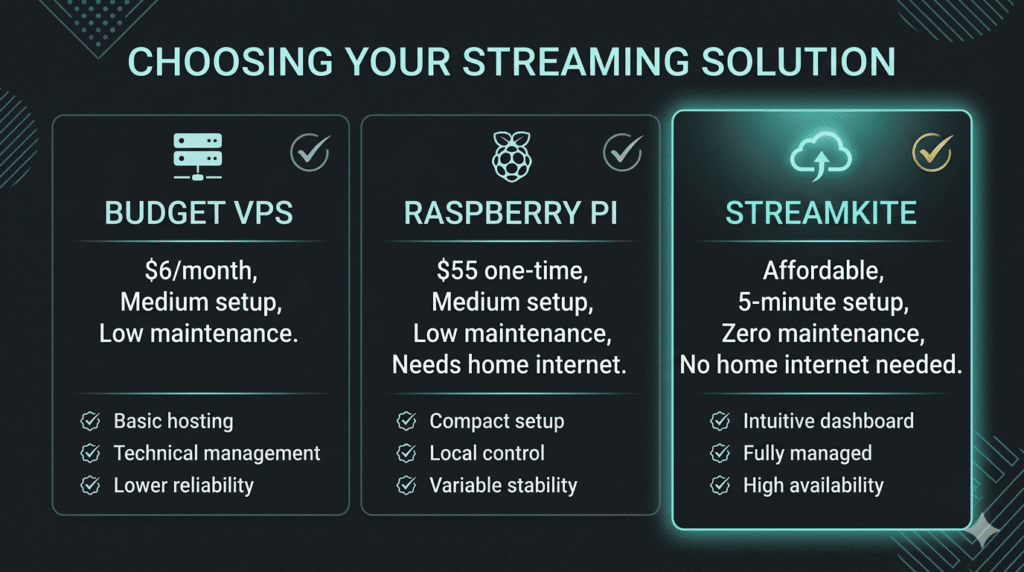
Comparison: Low-Cost 24/7 Streaming Server Options
| Option | Cost | Setup Time | Tech Skill | Home Internet Needed | Auto-Reconnect |
|---|---|---|---|---|---|
| Budget VPS + FFmpeg | ~$6/mo | 1–3 hours | Linux required | ❌ No | With systemd config |
| Raspberry Pi 4 | $55 one-time | 2–4 hours | Linux required | ✅ Yes | With systemd config |
| StreamKite | Affordable plan | Under 5 min | None | ❌ No | ✅ Built-in |
FAQ — Low-Cost 24/7 Streaming Server Setup
1. Does the server location affect my YouTube stream quality?
Yes, modestly. A server located geographically closer to YouTube’s nearest RTMP ingest point will have lower latency and typically better packet loss characteristics. For most creators, any major cloud provider’s datacenter in their same continent provides sufficient proximity. For latency-critical setups, Hetzner (Germany/Finland/US), DigitalOcean, and Vultr all allow datacenter region selection at VPS creation.
2. Can I run multiple 24/7 streams from one VPS?
Yes. Each additional stream adds approximately the same CPU/bandwidth load as the first. A $6/month VPS with 2 vCPUs can comfortably handle 2–3 simultaneous loop streams (remux only, no re-encoding). For re-encoding multiple streams simultaneously, a larger VPS plan is needed. Run multiple systemd services — one per stream — each pushing to a different YouTube stream key.
3. How do I update the loop video on a VPS without stream downtime?
Upload the new file to the VPS (via SCP) while the stream is running. Then restart the service with a brief gap: systemctl restart stream. The stream will go offline for 2–5 seconds while FFmpeg restarts with the new file. For a smoother transition, some operators overlap the old and new file names, update the service file, and reload: systemctl daemon-reload && systemctl restart stream.
4. Is a VPS secure enough to store my YouTube stream key?
Your stream key in a VPS config file is only accessible to anyone with SSH access to the server — which should only be you. Use SSH key authentication (not password) and disable root password login for basic security. Never store stream keys in public GitHub repositories or shared configuration files. If your stream key is compromised, regenerate it immediately in YouTube Studio.
5. What happens if the VPS provider has downtime?
Your stream goes offline. Major cloud providers (Hetzner, DigitalOcean, Vultr) have SLA-backed uptime guarantees in the 99.9% range — translating to less than 9 hours of downtime per year. This is far better than home PC uptime but not zero. For channels where every minute of uptime has revenue impact, a managed platform with redundant infrastructure (like StreamKite) provides better practical uptime than a single VPS instance.
6. Can I run a 4K 24/7 stream from a $6 VPS?
Only if the 4K video is pre-encoded at your target bitrate and you’re remuxing (copying) rather than re-encoding. Remuxing a 4K H.264 stream requires about the same CPU as remuxing a 1080p stream. Re-encoding 4K video requires significantly more CPU — a $6 single-vCPU VPS would be overwhelmed. YouTube’s recommended 4K bitrate (15,000–20,000 Kbps) also requires a VPS plan with sufficient monthly data transfer allowance.
7. How much storage does a typical 24/7 loop video need on the server?
A 1-hour 1080p H.264 video at 4,500 Kbps is approximately 2.0GB. A 4-hour loop is approximately 8GB. An 8-hour loop is approximately 16GB. Most budget VPS plans include 20–25GB SSD storage, which comfortably fits a 4–8 hour loop file with room for the OS and logs. If you need longer loops, select a plan with more storage or use an attached block storage volume.
8. How do I monitor whether my VPS stream is still running without checking manually?
Set up a simple monitoring script that checks the systemd service status every minute and sends an alert (via email or Telegram bot API) if the service shows as inactive. Alternatively, use a free uptime monitoring service (UptimeRobot) configured to monitor your YouTube channel’s live status via the YouTube Data API. This gives you alerts when the stream goes offline, minimizing the window between failure and recovery.
Run Your 24/7 Stream Without a Server Admin Learning Curve.
The VPS approach is powerful and affordable. StreamKite is what you use when you want all the benefits of cloud streaming without the server configuration, Linux commands, and ongoing maintenance.
StreamKite lets you run a 24/7 live stream from any device without keeping your PC on. No technical knowledge needed. Setup takes under 5 minutes.
Start your 24/7 loop stream today
Run a nonstop YouTube live stream from any device.
No PC required. No technical knowledge needed.
