

Running a 24/7 live stream on a local PC is a CPU endurance test. Most streaming setups that work fine for a 2-hour gaming session start struggling after 24 hours — encoding bottlenecks accumulate, temperatures rise, frame drops appear, and eventually the whole thing falls apart.
This guide covers every technique to reduce CPU usage for continuous live streaming — from encoder settings to process management to the one change that eliminates the CPU problem entirely.
Why CPU Load Is Different for 24/7 Streams vs Regular Streams
Short streams are manageable because modern CPUs can sustain high loads for limited periods using thermal boost clocks. Your CPU might run at 4.8GHz under load during a gaming stream, but only because it’s designed to sustain that speed for minutes, not days.
For continuous live streaming, sustained CPU load is the problem. After 6–12 hours of continuous encoding, thermal throttling kicks in — the CPU reduces its clock speed to manage heat. Your stream’s encoding performance drops. Frame times become inconsistent. The bitrate stutters. Eventually the stream goes offline or the quality degrades significantly.
Understanding this distinction is why most CPU optimization guides for streaming are incomplete — they’re written for short sessions, not the sustained workloads that 24/7 streaming demands.
If you’re running pre-recorded content as a 24/7 loop, the approach changes significantly. Read our guide on how to stream pre-recorded videos live on YouTube — the cloud-based method covered there removes CPU from the equation entirely.
Understanding What’s Using Your CPU During a Live Stream
Before optimizing, you need to know exactly what’s consuming CPU cycles during your stream. Open Task Manager (Ctrl+Shift+Esc), go to the Details tab, and sort by CPU usage during a live stream. You’ll typically find:
- obs64.exe — OBS itself, including encoding, compositing, and scene rendering
- ffmpeg.exe — if you’re using FFmpeg directly, this is the encoding process
- Your source application — the video player or media source feeding the stream
- System processes — Windows Defender scanning, indexing, update services
For a 24/7 stream running a pre-recorded video file (as opposed to a live game capture), OBS’s encoding process should account for the majority of CPU use. If system processes are consuming significant CPU alongside OBS, that’s a separate problem to fix first.
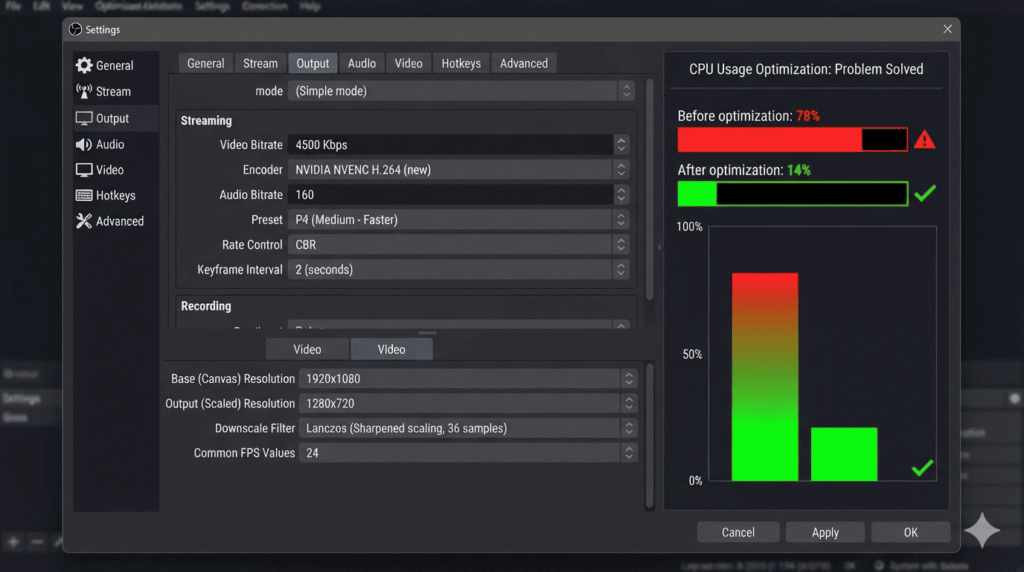
Fix #1: Switch to Hardware Encoding (NVENC / AMF / QuickSync)
Software encoding (x264) uses your CPU exclusively. Hardware encoding (NVENC on NVIDIA, AMF on AMD, QuickSync on Intel) offloads the encoding workload to a dedicated chip on your GPU or CPU, dramatically reducing CPU usage.
In OBS:
- Go to Settings → Output → Encoding
- Change the Encoder from “x264” to “NVENC H.264” (NVIDIA), “H264/AVC Encoder (AMF)” (AMD), or “QuickSync H.264” (Intel)
- Set the Rate Control to CBR (Constant Bitrate) for stream stability
- Set bitrate to your target (4,500 Kbps for 1080p)
Result: CPU usage during encoding typically drops from 40–80% to 5–15%. The quality is slightly lower than x264 at the same bitrate, but the stability improvement for 24/7 streaming is worth it.
Important caveat for 24/7 streaming: Hardware encoders on consumer GPUs (GTX/RTX series, RX series) are not rated for sustained 24/7 operation. NVENC running continuously for weeks generates significant heat on the GPU’s dedicated encoder block. Monitor GPU temperatures and consider thermal monitoring even when using hardware encoding for extended streams.
Fix #2: Lower the x264 Encoder Preset
If you need to stay on software encoding (x264) for quality reasons, the biggest lever you have is the encoder preset. The preset controls the trade-off between encoding speed and compression efficiency.
In OBS Settings → Output → Encoder Preset:
- veryfast — high CPU usage, good quality for the bitrate
- superfast — moderate CPU usage, slightly lower quality
- ultrafast — minimal CPU usage, lower quality but extremely stable
For a 24/7 stream running pre-recorded visual content (lofi, meditation, relaxing music), the visual is largely static and the quality difference between “veryfast” and “ultrafast” is nearly imperceptible to viewers. Dropping to “ultrafast” can cut x264 CPU usage by 40–60% with no meaningful quality loss on static visuals.
For content with frequent motion (action clips, sports highlights, fast-paced visual), “superfast” is the practical minimum before quality degrades visibly.
Fix #3: Reduce Output Resolution for 24/7 Runs
Encoding at 1920×1080 uses substantially more CPU than encoding at 1280×720 — the encoder processes nearly 2.5× more pixels per frame. For most 24/7 stream content types, 720p is visually equivalent because the content itself is minimally moving.
In OBS → Settings → Video:
- Set Output (Scaled) Resolution to 1280×720
- Keep your canvas at 1920×1080 if your source is 1080p (OBS will downscale)
- Set Downscale Filter to “Bilinear” for fastest processing, “Lanczos” for best quality
CPU usage reduction from this change alone: typically 20–35%. For a CPU already running near its sustained capacity, this can be the difference between a stable stream and one that throttles after 12 hours.
Fix #4: Reduce Frame Rate to 24fps
Streaming at 30fps requires the encoder to process 30 frames per second. At 24fps, it processes 24 — a 20% reduction in encoder workload with no change to output quality for most 24/7 stream content types. Lofi music, meditation streams, ambient channels, and most podcast or radio streams at 24fps are visually indistinguishable from 30fps.
In OBS Settings → Video → Common FPS Values → set to 24 NTSC (23.976) or 24.
For content with motion (sports, gaming, fast video), 24fps will look choppy. For static or slow visual content, it’s completely acceptable and meaningfully reduces CPU load.
Fix #5: Pre-Encode Your Loop Video at Stream Settings
The most overlooked CPU optimization for 24/7 streams running video files: pre-encoding your source video at exactly your stream’s output settings.
When OBS streams a video file, it typically has to decode the source, composite it, then re-encode to H.264 for streaming. If your source file is already H.264 at your target bitrate and resolution, OBS can remux (copy the stream without re-encoding), which uses a tiny fraction of the CPU that full encoding requires.
How to set this up:
- Export your loop video in H.264 at your exact stream bitrate and resolution (e.g., 1080p, 4,500 Kbps, 30fps)
- In OBS, add the video as a Media Source
- In OBS Output settings, if using FFmpeg custom output, set it to copy streams rather than encode
This is more of an advanced configuration, but when done correctly it reduces encoding CPU usage to near-zero since no transcoding is happening. The stream is simply being remuxed and pushed to the RTMP server.
Fix #6: Kill Background Processes That Compete for CPU
Several Windows background services consistently consume CPU cycles that directly compete with your streaming workload:
Windows Defender real-time scanning scans files as they’re accessed — including your loop video file on every read cycle. For a 24/7 stream continuously reading the same file, this adds up. Solution: add your OBS scene collection and loop video file to Defender’s exclusion list (Windows Security → Virus & Threat Protection → Exclusions).
Windows Update and delivery optimization uses CPU and bandwidth in the background. Solution: set Active Hours to cover your streaming period, and disable Delivery Optimization (Settings → Windows Update → Advanced Options → Delivery Optimization → Off).
Search Indexing runs continuously in the background. For a dedicated streaming machine, you can safely disable it (Services → Windows Search → set to Disabled).
OneDrive, Google Drive, and other sync clients should be paused or removed from a dedicated streaming machine. They consume CPU and bandwidth during sync operations that directly compete with your stream’s encoding throughput.
Fix #7: Set Process Priority and CPU Affinity for OBS
For a machine dedicated to 24/7 streaming, manually assigning OBS to specific CPU cores (affinity) and setting process priority can reduce interference from other processes.
In OBS:
- Open OBS → go to Settings → Advanced → set Process Priority to “Normal” (not High — High causes instability with other system processes over long runs)
- In Task Manager → Details → right-click obs64.exe → Set Affinity → assign it to your highest-performance physical cores (typically cores 0-3 on most consumer CPUs)
This is a minor optimization but it can prevent CPU scheduling conflicts during extended runs, particularly on machines with mixed-use workloads.
Fix #8: Use StreamKite to Remove CPU From the Equation Entirely
Every optimization above is a workaround for the same root problem: streaming from your local PC requires your CPU to encode continuously. The most complete fix isn’t optimizing the encoding — it’s eliminating local encoding altogether.
When you use StreamKite, your video lives on their servers and streams from there. Your CPU isn’t involved in encoding. Your PC doesn’t even need to be on. The servers running the encoding are datacenter-grade hardware running a single dedicated workload — not a general-purpose consumer desktop trying to multitask encoding with everything else Windows is doing.
For 24/7 streams running pre-recorded content (lofi, meditation, ambient, podcast, radio), StreamKite is the optimal solution: upload once, and your CPU usage for streaming permanently drops to zero.
CPU Optimization Methods Compared
| Method | CPU Reduction | Quality Impact | Implementation Time | Permanent Fix? |
|---|---|---|---|---|
| Switch to NVENC/AMF/QuickSync | High (60–70%) | Minimal | 5 minutes | Partial |
| Lower x264 preset to ultrafast | Medium (40–60%) | Low on static content | 2 minutes | Partial |
| Reduce to 720p output | Medium (20–35%) | Minimal on static | 2 minutes | Partial |
| Reduce to 24fps | Low (10–20%) | None on slow content | 1 minute | Partial |
| Pre-encode + remux loop | Very High (80–90%) | None | 1–2 hours | Partial |
| Kill background processes | Low-Medium (5–20%) | None | 30 minutes | Partial |
| StreamKite (cloud streaming) | 100% — zero local CPU | None | Under 5 minutes | ✅ Yes |
FAQ — Reducing CPU Usage for Continuous Live Streaming
1. What CPU usage percentage is safe for sustained 24/7 streaming?
For continuous 24/7 streaming, you want your CPU sustained load below 60–70% to leave thermal headroom. Above 80% sustained, most consumer CPUs begin thermal throttling within hours, reducing clock speeds and causing encoder instability. The lower you can get your sustained CPU load, the longer the hardware runs reliably without intervention.
2. Is hardware encoding (NVENC) safe to run 24/7?
NVENC is significantly safer for sustained operation than x264 because it offloads work from the CPU to the GPU’s dedicated encoder block. However, consumer GPUs (GTX/RTX) still generate heat during sustained encoding. Monitor GPU temperatures — if you’re seeing above 80°C sustained, improve case airflow or add direct airflow to the GPU. Professional/workstation GPUs (NVIDIA Quadro, A-series) are rated for sustained operation but are rarely in consumer streaming setups.
3. Does streaming in 720p instead of 1080p look noticeably worse on YouTube?
For static or slow-moving visual content (lofi streams, meditation, podcast visuals, ambient backgrounds), 720p is barely distinguishable from 1080p on most viewer displays, especially at normal viewing distances. YouTube also re-encodes all streams server-side, and the quality difference between 720p and 1080p narrows further after YouTube’s processing. For content with significant motion, the difference is more noticeable.
4. Can I stream and use my PC for other tasks at the same time for 24/7 runs?
Not reliably. Other CPU-intensive tasks (video editing, gaming, rendering) directly compete with the encoding process and will cause frame drops, bitrate fluctuations, and potential stream instability. A machine running a 24/7 stream should ideally be dedicated to that task only. If you need to use your computer for other work, cloud streaming is the practical solution — your PC is completely free.
5. Does reducing bitrate also reduce CPU usage?
Yes, but modestly. Bitrate affects the output data rate, but the encoder still processes every frame at the set quality level regardless of bitrate. The bigger CPU impact comes from resolution, frame rate, and encoder preset — not bitrate directly. Reducing bitrate from 4,500 Kbps to 3,000 Kbps might reduce encoding CPU usage by 5–10%, whereas dropping to 720p at the same bitrate reduces it by 20–35%.
6. What CPU is best for 24/7 continuous live streaming?
For a dedicated local streaming machine, high clock speed matters more than core count for x264 encoding. Intel’s Core i5/i7 processors with strong single-core performance, or AMD’s Ryzen 5000/7000 series, handle streaming well. However, any CPU rated for sustained operation at moderate loads will handle 24/7 streaming if properly configured — the issue is usually the streaming software configuration, not the hardware itself.
7. Why does my CPU usage spike during the stream even with hardware encoding?
GPU encoding (NVENC/AMF) handles compression but OBS still uses the CPU for scene compositing — combining multiple sources, applying filters, and rendering the final frame before passing it to the encoder. With a single pre-encoded video file as the source, compositing is minimal. With multiple sources (overlays, alerts, browser sources), compositing CPU usage can be significant. Remove all non-essential OBS sources and plugins for 24/7 unattended runs.
8. Is there a way to stream 24/7 with zero CPU usage?
With local PC streaming: no. Some encoding will always happen locally. The closest you can get is the pre-encode + remux approach, but this still uses a small amount of CPU for the container muxing and RTMP push. With cloud streaming (StreamKite), your local CPU usage for streaming is genuinely zero — the entire pipeline runs on the platform’s servers. Your machine doesn’t need to be on at all.
Stop Maxing Out Your CPU. Stream From the Cloud.
Every optimization in this guide buys you stability margin — but you’re still fighting the same fundamental problem. Your consumer CPU was not designed to encode video continuously for weeks at a time.
StreamKite removes your CPU from the equation completely. Your stream runs on cloud infrastructure built for exactly this workload, and your machine stays free for everything else.
StreamKite lets you run a 24/7 live stream from any device without keeping your PC on. No technical knowledge needed. Setup takes under 5 minutes.
Start your 24/7 loop stream today
Run a nonstop YouTube live stream from any device.
No PC required. No technical knowledge needed.
