There are dozens of tools claiming to run 24/7 YouTube live streams. Most of them require a powerful PC running nonstop, constant monitoring, or a steep learning curve that kills motivation in the first week. This guide cuts through the noise and shows you exactly which software actually works — and which ones waste your time and money.
Why Choosing the Right Software for 24/7 Streaming Actually Matters
Not all streaming software is built for the same job.
OBS Studio is built for interactive gaming streams where you’re sitting at your keyboard. Streamlabs is built for personality-driven streams with alerts and overlays. Neither of them was designed to run unattended for days or weeks at a time.
When you pick the wrong tool for a 24/7 YouTube stream, you end up with a stream that drops every few hours, a PC that overheats at 3am, or a technical mess you have to babysit constantly.
The best 24/7 live streaming software for YouTube solves one core problem: it keeps streaming without you.
What to Look for in 24/7 Live Streaming Software
Before comparing tools, here’s what actually separates a good 24/7 streaming solution from a frustrating one.
Stability and uptime. Your software needs to run for days without crashing. Most desktop apps aren’t designed for this. One crash at 2am means your stream is offline until you wake up and notice.
Auto-reconnect on stream drop. YouTube’s RTMP connection sometimes drops briefly — it’s normal. Good software reconnects automatically within seconds. Bad software just stops and waits for you.
Ease of use. You shouldn’t need a Linux server certification to run a loop stream. The best tools for beginners should be set up and running in minutes, not hours.
Price. You’re running a nonstop stream — the cost compounds over time. Cheap tools that work reliably beat expensive tools that need constant attention.
No PC dependency. This is the big one. If your continuous YouTube live stream software requires your home PC to stay on 24/7, your electricity costs pile up and one power cut ends everything. Cloud-based software solves this entirely.
The 5 Best Tools for 24/7 YouTube Live Streaming
Here’s an honest look at every major option. Tested, compared, and explained without the marketing fluff.
StreamKite — Best Overall for 24/7 Streams
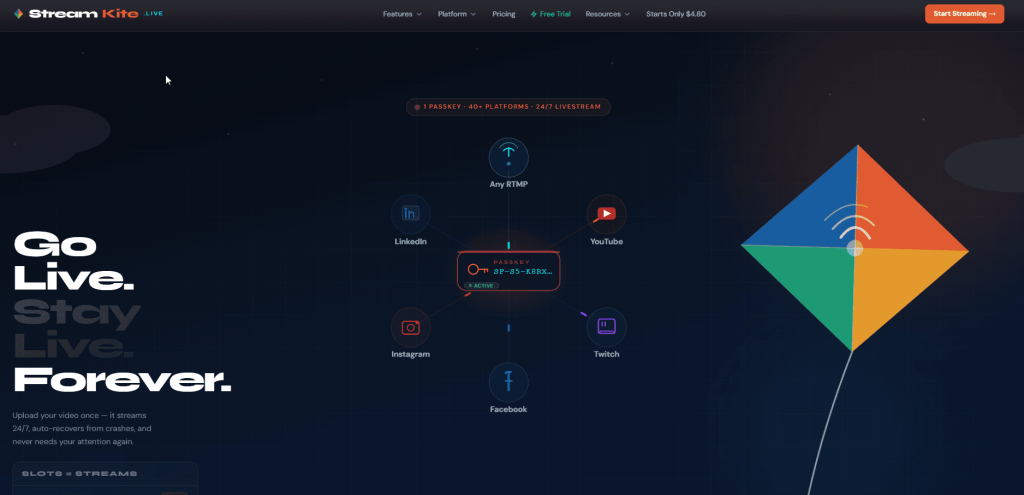
StreamKite is hands-free YouTube streaming built specifically for 24/7 loop streams. You upload your video, paste your YouTube stream key, and click Start. That’s the entire setup.
The stream runs on StreamKite’s cloud servers — not your PC. You can close your laptop, turn it off, or go on a two-week trip and the stream keeps running. It uses automated RTMP streaming under the hood, so YouTube receives a clean, stable signal the same way it would from any professional broadcast setup.
What makes StreamKite stand out against every other tool on this list is the combination of zero PC dependency, automatic crash recovery, and a setup time under 5 minutes. There’s no other 24/7 YouTube stream software that hits all three.
Best for: Anyone who wants a nonstop YouTube stream without a technical background or a PC left running.
Pros:
- No PC required — runs entirely in the cloud
- Auto-reconnects if stream drops
- Upload-and-forget loop playback
- Works from any device including your phone
- No command line, no config files
Cons:
- Not free (but affordable for what it offers)
- Not designed for interactive gaming streams or live webcam use
2. OBS Studio — Best Free Option (With Real Limitations)
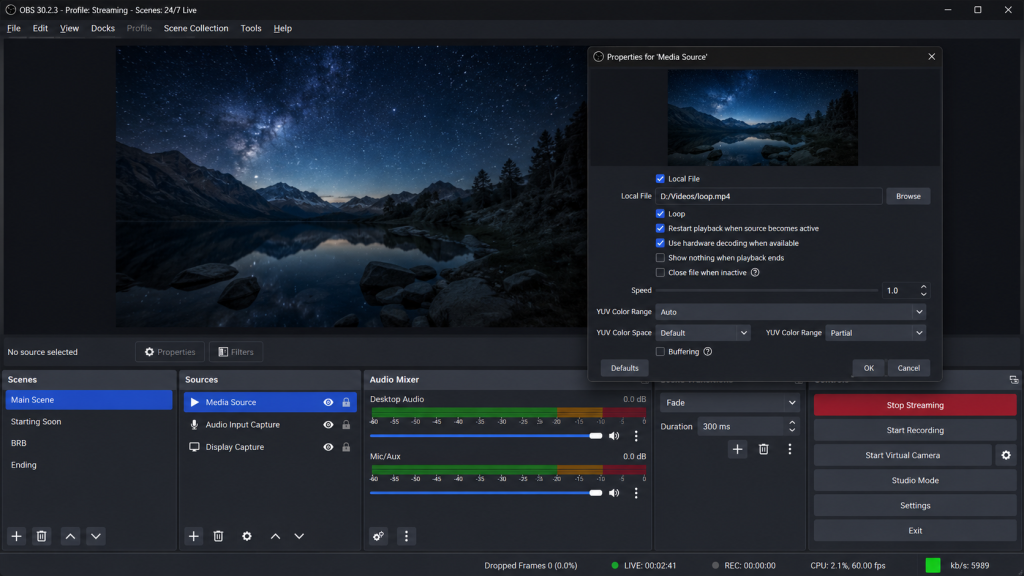
OBS Studio is free, powerful, and the most well-known streaming tool in the world. You can set it up to loop a pre-recorded video using the Media Source, enable the loop toggle, and stream to YouTube with your RTMP key.
For manual streams, OBS is excellent. For best software to stream 24/7 on YouTube unattended — it falls short.
Your PC must stay on. If OBS crashes (and it does, especially on long sessions), your stream goes offline silently. There’s no auto-reconnect built in by default. You have to be the monitoring system.
Many creators start with OBS, find it running fine for a few days, then wake up to find it crashed at 4am and their stream has been offline for six hours.
Best for: Creators who want a free starting point and don’t mind managing it manually.
Pros:
- Completely free
- Huge community and plugin support
- Works well for shorter or manually supervised streams
Cons:
- PC must stay on 24/7
- No auto-reconnect on disconnect
- Not built for unattended continuous YouTube live streams
- Crashes on long sessions without manual intervention
3. Restream — Best for Multi-Platform Streaming
Restream is a cloud-based platform that lets you stream to YouTube, Twitch, Facebook, and dozens of other platforms simultaneously. It’s a solid tool if multi-platform reach is your priority.
However, Restream is not built for 24/7 loop streaming. It’s designed for creators who are actively going live and want to hit multiple platforms at once. The pre-recorded loop playback features are limited compared to dedicated loop stream software, and the pricing scales up quickly once you move beyond the free tier.
If your goal is a nonstop YouTube streaming tool that loops a file automatically, Restream isn’t the right fit. If your goal is to broadcast a live event to multiple platforms at once, Restream is excellent.
Best for: Creators who go live manually and want to reach multiple platforms at the same time.
Pros:
- Streams to 30+ platforms simultaneously
- Browser-based, no download required
- Good stream quality management
Cons:
- Not designed for 24/7 automated loop streams
- Can require PC or active session for reliable operation
- Cost increases significantly on paid plans
4. Streamlabs — Best for Gaming and Interactive Streams
Streamlabs is essentially OBS with a more polished interface, plus built-in alerts, donation tracking, and widgets designed for gaming creators. It’s popular, well-supported, and easy to set up for a traditional live stream.
For 24/7 automated streaming, it has the same core problem as OBS — your PC needs to stay on. Streamlabs doesn’t support 24/7 automated streaming in any meaningful sense. It’s built for you to be present during the stream.
If you’re a gaming creator doing scheduled live sessions, Streamlabs is a great tool. If you want hands-free YouTube streaming that runs overnight, it’s the wrong choice.
Best for: Gaming streamers and interactive live streamers who are present during broadcasts.
Pros:
- Clean, beginner-friendly interface
- Built-in alerts, overlays, and stream widgets
- Free version is usable
Cons:
- PC must stay on
- No unattended loop streaming support
- Heavier on system resources than OBS
5. FFmpeg on a VPS — Best for Technical Users
FFmpeg is a free, open-source command-line tool that handles video processing and streaming with extreme flexibility. When you pair it with a VPS (a rented cloud server), you get a cloud-based streaming setup with no PC dependency — similar to StreamKite, but entirely manual.
A basic loop stream command looks like this:
bash
ffmpeg -re -stream_loop -1 -i your-video.mp4 \
  -v libx264 -b:v 4500k :a aac -b:a 128k \
  -f flv rtmp://a.rtmp.youtube.com/live2/YOUR_STREAM_KEY
This runs in the background on your VPS and keeps looping until you stop it.
The problem is everything around that command. If the process crashes, you need to SSH back in and restart it manually — unless you set up a systemd service or a cron job, which requires more Linux knowledge. If your stream key expires or YouTube drops the connection, nothing reconnects automatically without custom scripting.
For a developer or someone comfortable with Linux, this is a powerful and cheap option. For anyone else, the maintenance overhead makes it impractical.
Best for: Developers and technical users who want full control and are comfortable on the command line.
Pros:
- No monthly platform cost (just VPS cost, ~$5–10/mo)
- Extremely flexible — full control over encoding settings
- No dependency on a third-party platform
Cons:
- Hard to set up correctly
- No GUI — command line only
- Manual crash recovery unless you build automation yourself
- Easy to misconfigure and break the stream silently
| Software | Best For | PC Required | Price | Auto-Reconnect | Ease of Use |
|---|---|---|---|---|---|
| StreamKite ⭐ | 24/7 cloud streams | ❌ No | Affordable | ✅ Yes | Very Easy |
| OBS Studio | Manual streaming | ✅ Yes | Free | ❌ No | Medium |
| Restream | Multi-platform | ✅ Yes | Paid | Limited | Easy |
| Streamlabs | Gaming streams | ✅ Yes | Freemium | ❌ No | Easy |
| FFmpeg + VPS | Technical users | ❌ No | VPS cost | Manual setup | Hard |
Who Should Use Which Software
This is the honest breakdown based on your situation:
Best for beginners → StreamKite No technical knowledge, no PC left running, setup in under 5 minutes. If you’re new to 24/7 streaming, this is where to start.
Best free option → OBS Studio If you have zero budget and your PC is always on anyway, OBS works. Just know it needs manual babysitting and isn’t built for unattended sessions.
Best for multi-platform → Restream If you want to hit YouTube, Twitch, and Facebook simultaneously during a live session, Restream handles that better than anything else on this list.
Best for technical users → FFmpeg on VPS If you’re a developer who wants full control and doesn’t mind writing a few shell scripts, VPS + FFmpeg gives you maximum flexibility at minimum cost.
Best overall for 24/7 → StreamKite The only solution on this list that combines cloud hosting, automatic crash recovery, no PC dependency, and beginner-friendly setup in one product.
Common Mistakes When Choosing 24/7 Streaming Software
Choosing a tool built for interactive streams. OBS and Streamlabs are designed for streamers who are present. Using them for 24/7 unattended streams is like using a sports car to tow a trailer — technically possible, practically frustrating.
Ignoring auto-reconnect. YouTube’s RTMP connection drops occasionally. Without auto-reconnect, a 2-minute network hiccup means your stream goes offline until you manually restart it. This is a dealbreaker for a true 24/7 setup.
Underestimating PC operating costs. Running a mid-range gaming PC 24/7 costs $30–$80/month in electricity depending on your region. A cloud-based solution often costs less than that and does more.
Going straight to FFmpeg without Linux experience. FFmpeg is powerful, but if you’ve never used SSH or a terminal before, you’ll spend more time debugging than streaming. Start with a managed platform and move to FFmpeg later if you outgrow it.
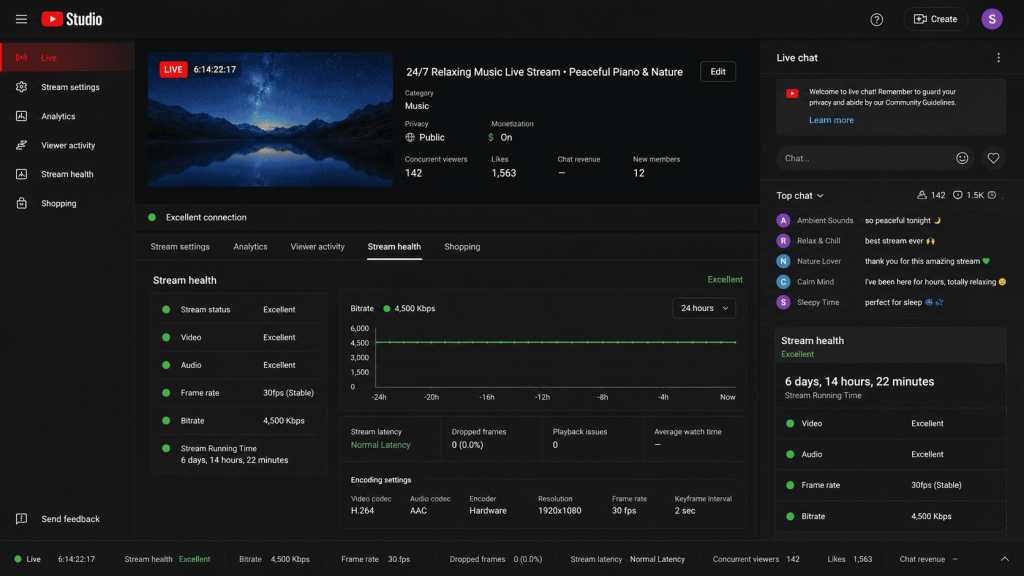
Not testing the stream before walking away. Whatever software you use, always verify the stream is healthy in YouTube Studio before you consider it “set and forget.” Check for dropped frames, audio sync, and stable bitrate in the first 10 minutes.
FAQ — 24/7 Live Streaming Software for YouTube
1. What is the best free software for 24/7 YouTube streaming?
OBS Studio is the best free option. You can set up a looping media source and stream to YouTube at no cost. The major limitation is that your PC must stay on and OBS doesn’t auto-reconnect or recover from crashes automatically. For a truly unattended setup, a paid cloud platform like StreamKite is more reliable.
2. Can OBS run a 24/7 YouTube live stream reliably?
OBS can run for extended periods, but it’s not designed for 24/7 unattended operation. It has no built-in crash recovery or auto-reconnect. Many creators report OBS streams going offline overnight without warning. For supervised streams or shorter sessions, it’s fine. For a genuine continuous YouTube live stream that needs to stay up for days, you need a more robust solution.
3. Do I need a powerful PC for 24/7 live streaming?
Only if you’re running software locally. A 1080p stream in OBS or Streamlabs requires a decent CPU and consistent power supply running nonstop. With cloud-based automated live streaming software like StreamKite, the encoding and streaming happen on remote servers — your own PC’s specs don’t matter at all.
4. What software do 24/7 lofi music channels use?
Most established lofi and study music channels have moved to cloud-based RTMP streaming setups. Some use custom VPS + FFmpeg scripts, others use managed platforms. StreamKite is increasingly popular in this space because it removes the technical overhead while delivering the same reliable automated RTMP streaming those channels depend on.
5. Can I stream 24/7 to YouTube without a PC?
Yes. Cloud streaming software handles the stream entirely on remote servers. With StreamKite, you upload your video through a browser, start the stream, and your PC’s job is done. The stream runs 24/7 without any device on your end staying powered. This is the main advantage of cloud streaming software over desktop tools.
6. What is the most stable software for long YouTube streams?
For stability over days or weeks, cloud-based solutions outperform desktop software. StreamKite is purpose-built for this — it monitors stream health and automatically reconnects if YouTube drops the connection. FFmpeg on a well-configured VPS is also very stable, but requires technical setup. OBS and Streamlabs are the least stable options for long unattended sessions.
7. Does Streamlabs support 24/7 automated streaming?
No. Streamlabs is designed for interactive live streams where the creator is present. It doesn’t have a built-in 24/7 automated loop mode and requires your PC to stay running. If you need hands-free YouTube streaming, Streamlabs isn’t the right tool for the job.
8. What software automatically reconnects if the stream drops?
StreamKite includes automatic reconnection out of the box — no configuration needed. Among the free tools, OBS has a reconnect option buried in Advanced Settings, but it’s inconsistent and doesn’t handle all disconnect scenarios. For guaranteed auto-reconnect on any drop, a managed cloud streaming platform is the reliable choice.
Start Your 24/7 YouTube Stream Today
You now know exactly which software is best for running a 24/7 YouTube live stream without the headaches. The only thing left is getting started.
StreamKite lets you run a 24/7 live stream from any device without keeping your PC on. No technical knowledge needed. Setup takes under 5 minutes.
Start your 24/7 loop stream today
Run a nonstop YouTube live stream from any device.
No PC required. No technical knowledge needed.