
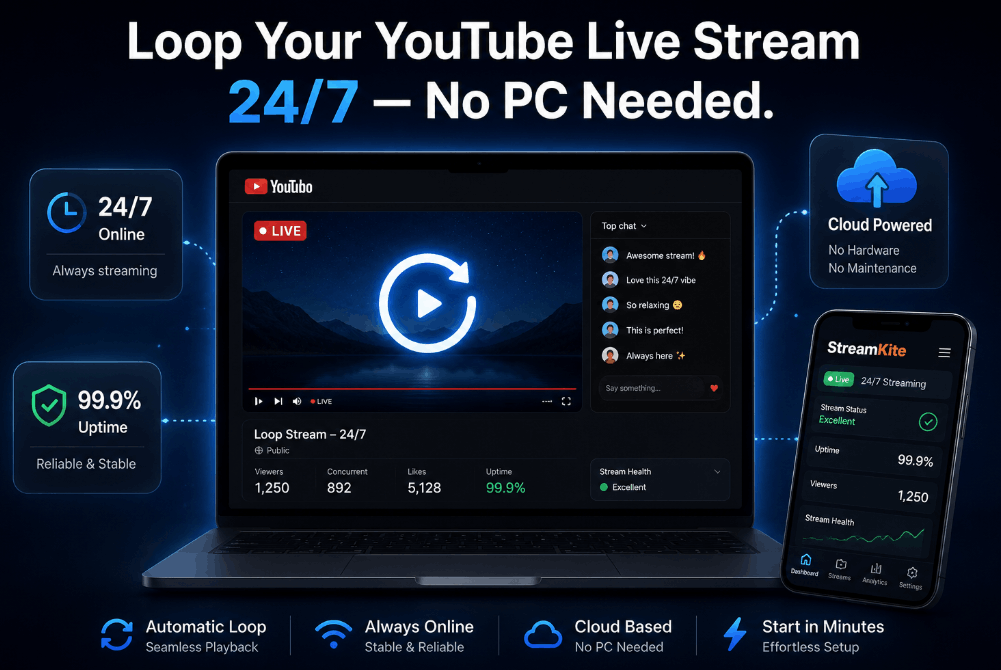

Most YouTube creators don’t realize you can loop a pre-recorded video on YouTube Live and run it 24/7 without touching your computer. No expensive hardware. No staying up all night. Just a simple setup that streams automatically while you sleep, work, or travel.
In this guide, you’ll learn exactly how to do it — from the basic concept all the way to a working stream that never stops.
What Does Looping a YouTube Live Stream Actually Mean?
When you “loop a video on YouTube Live,” you’re not uploading a video and clicking repeat.
You’re pushing a continuous video signal to YouTube’s servers using an RTMP stream key — the same way any live streamer goes live. The difference is that instead of a webcam or a game, the source is a pre-recorded video file that plays over and over in a loop.
YouTube sees it as a live stream. Your audience sees it as a live stream. The only thing that’s different is that you set it up once and walk away.
Why Creators Run 24/7 Loop Streams
This isn’t a trick. It’s a legitimate growth strategy used by thousands of channels — from lo-fi music channels to crypto news feeds to meditation content creators.
Here’s why it works:
Watch time accumulates around the clock. YouTube’s algorithm rewards channels with high total watch time. A 24/7 loop stream keeps earning watch time even when you’re offline.
It keeps your channel “active” without daily effort. Consistent live streams signal to YouTube that your channel is active, which can improve visibility in recommended feeds.
It builds a live audience. Viewers can drop in at any time and find something playing. Some of the biggest music channels on YouTube grew primarily through 24/7 loop streams.
Super Chats and memberships stay open. If your channel is monetized, viewers can support you through your loop stream at any hour.
The 3 Methods to Loop a Video on YouTube Live
There are three realistic ways to do this. Each has different tradeoffs depending on your technical comfort and how hands-off you want the setup to be.
Method 1: OBS Studio (PC Method)
OBS is free and most creators already have it installed. You can set up a media source with a local video file and enable the loop option, then stream it to YouTube using your stream key.
The problem? Your PC has to stay on. All the time.
That means:
- Your electricity bill climbs every month
- Your PC may overheat running overnight unattended
- If OBS crashes (and it does), your stream dies and stays dead until you notice
- Going on a trip means your stream goes down
For a one-off test, OBS works fine. For a real 24/7 setup, it’s unreliable.
Method 2: VPS with FFmpeg (Technical Method)
A VPS (Virtual Private Server) is a cloud computer you rent by the month. You can install FFmpeg on it — a command-line video tool — and use a command like this to loop your video to YouTube:
bash
ffmpeg -re -stream_loop -1 -i your-video.mp4 \
  -c:v copy -c:a copy \
  -f flv rtmp://a.rtmp.youtube.com/live2/YOUR_STREAM_KEY
This runs in the cloud, so your PC doesn’t need to stay on.
The problem? It requires SSH access, Linux command-line knowledge, manual restarts when the process crashes, and you’re on your own if something breaks. It’s powerful — but not beginner-friendly, and one wrong character in that command and your stream never starts.
Method 3: Cloud Streaming Platform — StreamKite (Easiest Method)
StreamKite is a cloud-based live streaming platform built specifically for 24/7 loop streams. You upload your video, paste your YouTube stream key, and it handles everything from there — including looping, crash recovery, and uptime monitoring.
No terminal. No FFmpeg commands. No PC left running. It works from a browser on your phone.
This is the method we’re focusing on for the rest of this guide.
Step-by-Step: How to Loop a Video on YouTube Live Using StreamKite
Step 1 — Create a YouTube Live Stream Event
- Go to YouTube Studio
- Click Create → Go Live
- Choose Schedule a stream or go live immediately
- Set the stream type to Persistent (this gives you a permanent stream key)
- Copy your Stream Key — you’ll need it in a moment
Step 2 — Get Your StreamKite PassKey
Go to streamkite.live and grab a PassKey. This is your access credential to the platform — no account signup, no email verification. Just a key that unlocks your streaming slot instantly.
Step 3 — Log In to the StreamKite Dashboard
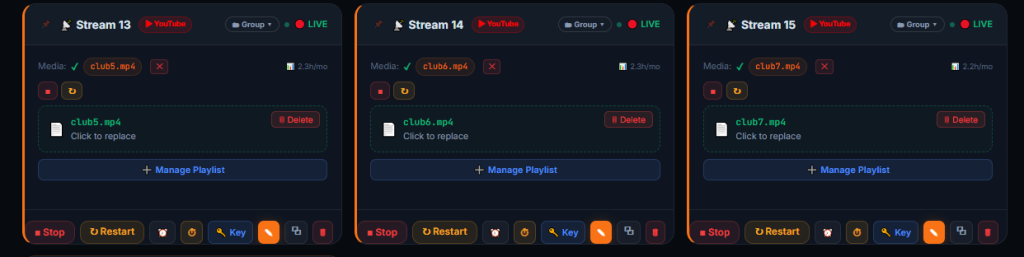
Enter your PassKey on the StreamKite login page. You’ll land on your stream dashboard where you can see your assigned streaming slot.
Step 4 — Upload Your Video
Inside your slot, click Upload Video. You can upload any standard video file (MP4 is recommended — more on formats below). StreamKite accepts files up to several GB depending on your plan.
The upload happens to StreamKite’s servers, not your local machine, so your internet speed only matters for the upload itself — not for keeping the stream alive later.
Step 5 — Add Your YouTube Stream Key
Paste the stream key you copied from YouTube Studio into the StreamKite slot settings. This is the address that StreamKite will push your video signal to.
Step 6 — Start the Stream
Hit Start Stream. StreamKite immediately begins pushing your video to YouTube in a continuous loop.
Within about 30–60 seconds, your YouTube channel will show as live. Open YouTube in another tab and verify the stream is visible and healthy.
That’s it. You can close the browser, turn off your PC, and the stream keeps running in the cloud.
Common Mistakes When Looping a YouTube Live Stream
These are the things that trip up most beginners:
Using the wrong stream key type. YouTube gives you different stream keys for different purposes. Use the “Persistent” stream key for 24/7 loop streams, not a one-time event key. If you use the wrong one, the stream ends after a set time.
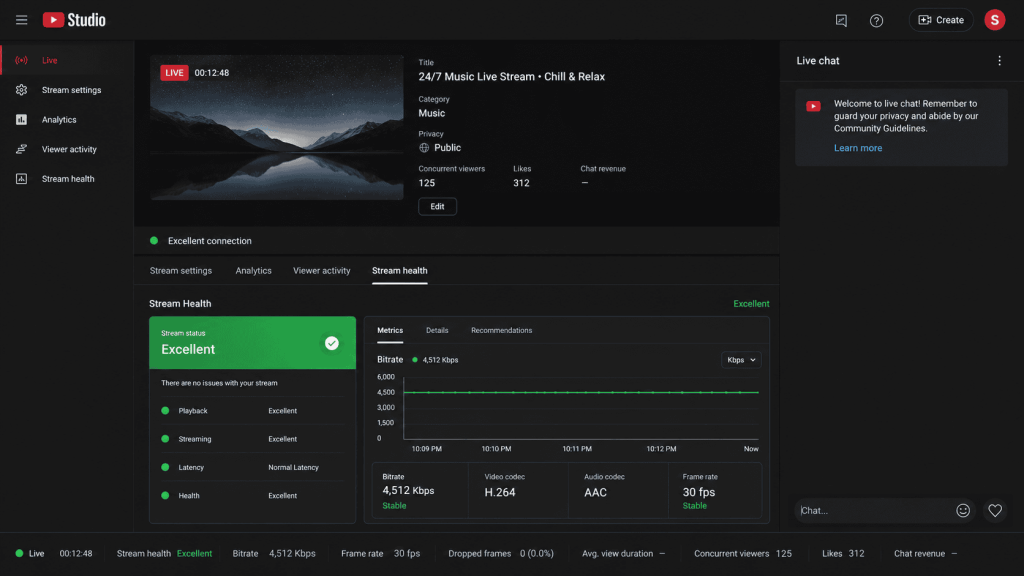
Uploading a video with unsupported audio. If your video has no audio track or uses a codec YouTube doesn’t like, the stream may reject or run with errors. Use H.264 video + AAC audio in an MP4 container — this combination works every time.
Setting bitrate too high for your plan. YouTube recommends 4,500 Kbps for 1080p. Pushing 8,000+ Kbps can cause buffering on the viewer’s end and instability on the ingest side.
Not enabling “Made for Kids” or age settings correctly. If your stream targets general audiences, make sure the COPPA setting matches your content. Mismatches can cause streams to be hidden from recommended feeds.
Ignoring stream health in YouTube Studio. YouTube’s Stream Health dashboard tells you if there are dropped frames or encoding issues. Check it within the first 5 minutes of going live to confirm everything is stable.
Using very short video files. If your loop video is only 30 seconds long, it’ll loop hundreds of times per hour. There are no hard rules against this, but it can create a jarring experience for viewers who stay for more than a minute. Aim for at least 30–60 minutes of content in your loop video.
OBS vs VPS vs StreamKite — Full Comparison
| Feature | OBS Studio | VPS + FFmpeg | StreamKite |
|---|---|---|---|
| PC required to run | ✅ Yes | ❌ No | ❌ No |
| Technical knowledge needed | Low | High | None |
| Crash auto-recovery | ❌ No | ❌ Manual | ✅ Yes |
| Setup time | 15–30 min | 1–2 hours | Under 5 min |
| Runs from phone/tablet | ❌ No | ❌ No | ✅ Yes |
| Monthly cost | Free (+ electricity) | $5–15/mo (VPS) | Varies by plan |
| Loop playback built-in | ✅ Yes (manual toggle) | ✅ Yes (FFmpeg flag) | ✅ Yes (automatic) |
| Beginner-friendly | Medium | ❌ No | ✅ Yes |
If you’re technical and want full control, VPS + FFmpeg is powerful. If you just want the stream to work without headaches, StreamKite is the clear choice.
FAQ — Looping a Video on YouTube Live 24/7
1. Does YouTube allow looping pre-recorded videos on Live?
Yes. YouTube’s Terms of Service permit live streaming pre-recorded content as long as it doesn’t violate their Community Guidelines and you aren’t falsely representing it as “happening right now” in a deceptive way. Thousands of channels run 24/7 loop streams with lofi music, study beats, meditation content, news replays, and more without any issues.
2. How long can a YouTube Live stream run continuously?
YouTube doesn’t publish a hard cap for continuous live streams. In practice, many channels have run nonstop for months. YouTube does recommend using a “Persistent” stream key for long-running streams. Some very long streams (several months) have been archived automatically by YouTube when they cross certain length limits, but the stream itself typically continues uninterrupted.
3. Do 24/7 loop streams count toward YouTube watch time?
Yes. Live stream watch time counts toward your YouTube Partner Program eligibility and your overall channel watch hours. This is one of the main reasons creators run 24/7 streams — it’s a legitimate, passive way to accumulate watch time even when you’re not actively producing new content.
4. Can I monetize a looped YouTube Live stream?
Yes, if your channel is already in the YouTube Partner Program. You can earn from ads displayed on the stream, Super Chats from viewers, and channel memberships. However, YouTube reserves the right to limit monetization on streams they determine have low-effort or repetitive content, so having quality content in your loop matters.
5. What happens if my loop stream drops or disconnects?
With OBS or a manual VPS setup, the stream simply dies and stays offline until you manually restart it. With StreamKite, the platform monitors your stream and automatically restarts it if there’s a disconnection. This is one of the biggest practical advantages of a managed cloud platform over a DIY setup.
6. Do I need to keep my PC on for a 24/7 YouTube loop stream?
Only if you’re using OBS or a locally installed tool. If you’re using StreamKite or any cloud-based streaming service, your PC can be completely off. The stream runs on remote servers that are always online. This is what makes the cloud approach genuinely 24/7 — there’s no single point of failure tied to your home setup.
7. What video format and bitrate should I use for YouTube Live?
YouTube recommends the following for live streaming:
- Video codec: H.264
- Audio codec: AAC-LC, 128 Kbps stereo
- Resolution: 1920×1080 at 30fps or 60fps
- Bitrate: 4,500 Kbps for 1080p30, up to 9,000 Kbps for 1080p60
- Container: MP4 or FLV (your streaming platform handles the FLV conversion)
When in doubt, encode your source file at 1080p H.264 + AAC in an MP4 and let the platform handle the rest.
8. Can I loop a video on YouTube Live for free?
You can do it for free using OBS Studio — but your PC stays on 24/7, which isn’t free in electricity costs and isn’t practical long-term. A VPS costs around $5–$10/month. StreamKite has entry-level PassKeys that make it accessible without a large upfront investment. For a real, stable 24/7 stream, some minimal cost is realistic.
Start Your 24/7 Loop Stream Today
You now know exactly how to loop a video on YouTube Live and keep it running around the clock. The only thing left is getting started.
StreamKite lets you run a 24/7 live stream from any device without keeping your PC on. No technical knowledge needed. Setup takes under 5 minutes.
Start your 24/7 loop stream today
Run a nonstop YouTube live stream from any device.
No PC required. No technical knowledge needed.
