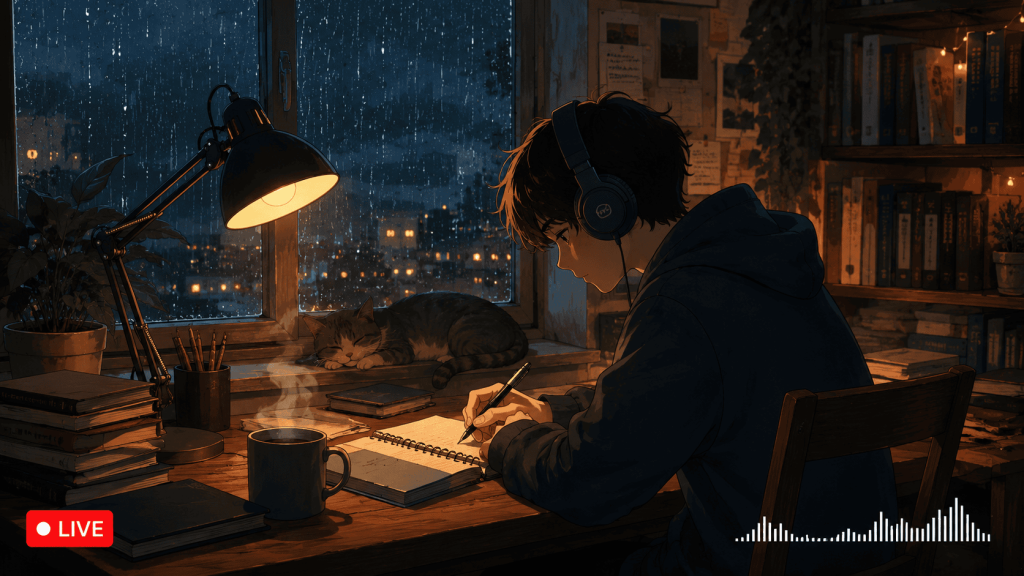
You’ve seen them everywhere on YouTube — the cozy animated scenes, the rain on the window, the cat at the desk, beats playing softly in the background.
Those channels aren’t live in the traditional sense. Nobody is sitting there pressing play. They’re running a 24/7 lofi hip hop live stream on loop — automatically, from the cloud, around the clock.
This guide shows you exactly how to build one from scratch, even if you’ve never streamed before.
Why Lofi Hip Hop Channels Dominate YouTube Live
Lofi music is one of the best-performing niches for 24/7 YouTube live streams — and it’s not an accident.
The format works because the audience behavior matches perfectly. People put on a lofi stream when they study, work, or wind down. They leave it running for hours. That means enormous watch time per viewer, which YouTube’s algorithm rewards heavily.
A well-set-up 24/7 lofi hip hop live stream accumulates watch time around the clock even when you’re sleeping. Viewers join, stay for two or three hours, and leave — and YouTube counts every minute of it.
The channels that have grown to millions of subscribers on the back of this format — ChilledCow (now Lofi Girl), Lofi Records, and dozens of others — built their audience almost entirely through continuous lofi streams, not through uploads.
The barrier to entry is lower than most creators think. You don’t need a record deal. You don’t need expensive equipment. You need a video, an audio track, and the right streaming setup.
What You Need Before You Start
Before touching any streaming software, get these three things ready.
1. Your Lofi Music
You have three options here:
Make your own beats. If you produce music, this is the best path — full control, no licensing issues, and your stream becomes a platform for your own work. Tools like FL Studio, Ableton, and even free options like LMMS work well for lofi production.
License beats from producers. Sites like Lofi Records, Chillhop Music, and individual producers on Bandcamp license music for streaming. Always get written permission that specifically covers YouTube live streaming — a basic license to “use” music often doesn’t cover it.
Use royalty-free or Creative Commons music. Sources like Free Music Archive, ccMixter, and YouTube Audio Library have tracks available for streaming use. Check the specific license on each track — CC BY requires attribution, CC BY-NC prohibits commercial use.
Do not use copyrighted music without a license. YouTube’s Content ID system will mute your stream, claim your revenue, or take down the stream entirely. This is the single most common mistake new lofi channels make.
2. Your Lofi Visual / Animation
The visual is what makes a lofi stream feel like a lofi stream. The classic format — an animated loop of a character studying, rain falling outside, a cat by the window — has become its own genre.
Commission a looping animation. Fiverr and Upwork have motion designers who specialize in exactly this style. A short 30–60 second looping animation can cost anywhere from $50 to $500 depending on quality. This is the route most serious channels take.
Use a static illustrated scene. A beautifully illustrated static image works if the music is strong. Add subtle animated elements (a blinking cursor, a swaying tree, rising steam from a mug) using tools like Adobe After Effects or CapCut to bring it to life.
License existing lofi visuals. Some artists sell lofi stream packages (background + overlay + alerts) on Etsy and Gumroad. Make sure the license explicitly covers YouTube live streaming.
Create in Canva or similar tools. For a minimal starting point, a well-composed static image with your channel name and a “LIVE” badge is enough to launch and test your setup before investing in animation.
3. Your Final Video File
Once you have your audio and visual ready, combine them into a single video file. This is the file you’ll upload to your streaming platform.
Recommended specs for a lofi hip hop live stream on YouTube:
- Format: MP4
- Video codec: H.264
- Audio codec: AAC, 320 Kbps stereo
- Resolution: 1920×1080 (1080p)
- Frame rate: 30fps (24fps also works for the lofi aesthetic)
- Video bitrate: 4,500–6,000 Kbps
- Duration: At least 1 hour of audio in the loop (longer is better for viewer retention)
Export this in Adobe Premiere, DaVinci Resolve, or any video editor that supports MP4/H.264 output.
Lofi hip hop stream visual with animated scene
Best Ways to Run a 24/7 Lofi Stream
Method 1: OBS Studio on Your PC
OBS lets you load your video file as a media source, enable loop, and stream to YouTube using your RTMP stream key. It costs nothing and works immediately.
The issue is what happens after you walk away.
Your PC has to stay on. If OBS crashes overnight — which it does on long sessions — your stream goes dark and stays dark until you restart it manually. Your electricity bill climbs. Your PC runs hot. One power cut and the stream is gone.
For a test run or a short scheduled stream, OBS is fine. For a true 24/7 lofi chill stream that runs while you live your life, it’s not the right tool.
Method 2: StreamKite (Recommended)
StreamKite is a cloud streaming platform built specifically for 24/7 loop streams. You upload your lofi video, enter your YouTube stream key, and hit Start. The stream runs in the cloud, loops automatically, and reconnects itself if YouTube drops the connection.
No PC running. No terminal. No crash monitoring. It works from a browser on your phone.
For a nonstop lofi YouTube channel, this is the cleanest path from “I have a video file” to “I’m live on YouTube 24/7.”
The rest of this guide walks through the StreamKite setup in full.
Step-by-Step: Setting Up Your 24/7 Lofi Stream with StreamKite
Step 1 — Prepare Your YouTube Channel for Live Streaming
Before you can go live on YouTube, you need to verify your channel and enable live streaming:
- Go to YouTube Studio
- Click Create → Go Live
- If you haven’t streamed before, YouTube will ask you to verify your phone number
- Live streaming access is usually enabled within 24 hours of verification
While you’re here, go to Settings → Channel → Feature eligibility and confirm live streaming is active on your account.
Step 2 — Create a Persistent Stream in YouTube Studio
- In YouTube Studio, click Go Live → Schedule
- Set a title — something like “lofi hip hop beats to study/relax to 🎵 24/7 live”
- Set the category to Music
- Under stream settings, select Persistent stream key (this key never expires)
- Set Made for Kids to “No, it’s not made for kids” unless your content is specifically children’s content
- Copy your Stream Key — keep this private and never share it publicly
Step 3 — Get Your StreamKite PassKey
Go to streamkite.live and get a PassKey. This is your access token — no email required, no account to manage. Enter it on the login page and you’re inside your dashboard instantly.
Step 4 — Upload Your Lofi Video File
Inside your StreamKite dashboard, open your stream slot and click Upload Video.
Select the MP4 file you prepared earlier. The upload goes to StreamKite’s servers — once it’s there, your local machine is no longer involved. The file lives in the cloud and streams from there.
Step 5 — Enter Your YouTube Stream Key
In your slot settings, paste the stream key you copied from YouTube Studio. This is the address that StreamKite will push your lofi audio live stream to. Double-check it — a single wrong character means the stream goes nowhere.
Step 6 — Configure Stream Settings
Set your output resolution and bitrate to match your video file. For a standard 1080p lofi stream:
- Resolution: 1920×1080
- Bitrate: 4,500 Kbps
- Frame rate: 30fps
- Audio: AAC 320 Kbps stereo
If you’re on a basic plan and need to conserve bandwidth, 720p at 2,500 Kbps still looks clean for the lofi visual style.
Step 7 — Start the Stream
Hit Start Stream.
StreamKite begins pushing your video to YouTube immediately. Within 30–60 seconds, your YouTube channel will show as live.
Open YouTube in a separate tab and search your channel name to confirm the stream is visible. Then go to YouTube Studio → Live Control Room and check the Stream Health panel — you want all green indicators and a stable bitrate line.
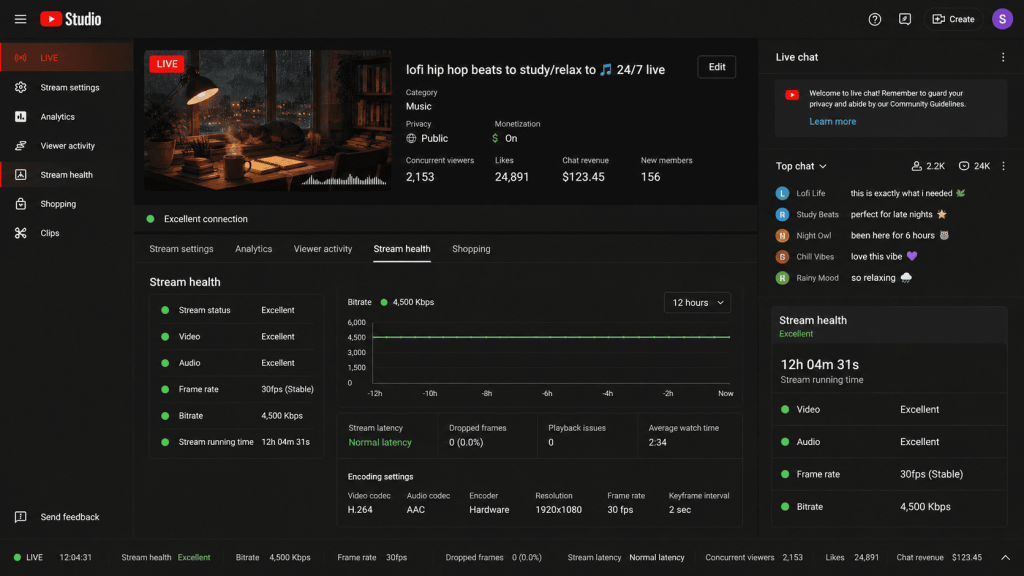
Once it’s green, you’re done. Close the browser, put your phone down, and let it run.
Making Your Lofi Channel Look Professional
Getting the stream running is only half the work. Here’s what separates a channel that grows from one that gets ignored.
Write a proper stream description. Your YouTube stream description should explain what the channel is, what kind of music plays, and any licensing credits for the music. Include relevant keywords like “lofi hip hop,” “study beats,” “chill stream,” and “24/7 music.” This helps your stream appear in search results.
Design a thumbnail that communicates the vibe. Your stream thumbnail is the first thing a new viewer sees. It should instantly communicate the aesthetic — warm, cozy, nocturnal, study-focused. Avoid generic stock images. A custom illustration in the lofi style converts far better.
Use chapters or timestamps in the description. Even on a loop stream, listing a few track names and timestamps in the description gives viewers something to engage with and makes the channel feel curated rather than automated.
Pin a comment with track credits. If you’re using licensed beats, pin a comment that credits the producers and links to their profiles. This builds goodwill with music creators and is required by many licenses.
Set up a proper channel banner and about section. Viewers who discover your stream will check your channel page. A professional banner and a clear “About” description that explains the channel’s purpose converts casual visitors into subscribers.
Common Mistakes When Starting a 24/7 Lofi Channel
Using copyrighted music. This is the most expensive mistake you can make. YouTube Content ID will find it. A single copyright claim can strip all revenue from the stream or take it down entirely. Always have written licensing permission that explicitly covers YouTube live streaming before you go live.
Making the loop video too short. A 2-minute loop is noticeable. Viewers who stay for more than a couple of minutes will hear the same sequence restart and leave. Aim for a minimum of 30–60 minutes of unique audio in your loop video.
Skipping the stream health check. Always verify your stream is healthy in YouTube Studio before walking away. A misconfigured bitrate or wrong stream key means your stream appears offline on YouTube while StreamKite thinks it’s running fine.
Using a one-time stream key instead of a persistent one. YouTube’s one-time stream keys expire after the scheduled event ends. Use the persistent stream key for anything meant to run continuously.
Not engaging with early viewers. In the first weeks of your channel, check the live chat occasionally and respond. Early engagement signals to YouTube that the stream has an active community, which helps with discoverability.
Ignoring thumbnail A/B testing. Your stream thumbnail has a massive impact on click-through rate. If your initial thumbnail isn’t performing, swap it out and watch whether view counts change. YouTube allows thumbnail updates on live streams without stopping the stream.
Comparison: OBS vs VPS + FFmpeg vs StreamKite for Lofi Streams
| Feature | OBS Studio | VPS + FFmpeg | StreamKite |
|---|---|---|---|
| PC required to run | ✅ Yes | ❌ No | ❌ No |
| Setup difficulty | Medium | Hard | Very Easy |
| Auto-reconnect on drop | ❌ No | Manual only | ✅ Yes |
| Looping built-in | ✅ Yes | ✅ Yes | ✅ Yes |
| Runs while PC is off | ❌ No | ✅ Yes | ✅ Yes |
| Crash recovery | ❌ Manual | ❌ Manual | ✅ Automatic |
| Cost | Free + electricity | ~$5–10/mo | Affordable |
| Best for lofi channels? | Short sessions only | Technical users | ✅ Yes |
FAQ — 24/7 Lofi Hip Hop Live Stream
1. Do I need to make my own music to start a lofi channel?
No. Many successful lofi channels license music from independent producers rather than making it themselves. The key is getting proper licensing that explicitly covers YouTube live streaming. Reach out to producers directly on Bandcamp, SoundCloud, or Instagram — many are happy to license their work to stream channels in exchange for exposure and a fee.
2. How long should my lofi loop video be?
At minimum, 30–60 minutes. Most established lofi channels use 1–3 hour loops. Longer loops mean less repetition for viewers who tune in for extended study or work sessions, which improves average view duration and reduces the chance of viewers leaving because they noticed the loop restarting.
3. Will YouTube Content ID flag my lofi live stream?
If your music is properly licensed or original, no. Content ID only flags copyrighted material. If you use music without permission, Content ID will likely detect it — especially for popular beats or samples. Some producers register their music with Content ID, which means even licensed tracks can trigger claims unless the producer has specifically whitelisted your channel. Always clarify this before going live.
4. Can I run a monetized 24/7 lofi live stream?
Yes, if your channel is in the YouTube Partner Program. You can earn from mid-roll ads on the stream, Super Chats, and channel memberships. YouTube may periodically review automated streams for ad suitability — having original or properly licensed music with clean visuals keeps you in good standing.
5. What animated style works best for lofi streams?
The “lo-fi aesthetic” — warm indoor scenes, a character studying or relaxing, weather visible through a window — has the highest viewer retention in this niche. That said, the niche is crowded and fresh visual directions stand out. Alternatives that work well include: pixel art scenes, café interiors, train window views with passing landscapes, and night city skylines with rainfall.
6. How do I handle music licensing for a 24/7 YouTube loop stream?
Get a written agreement from the rights holder that specifically permits YouTube live streaming and automated loop use. A general “streaming license” or “distribution license” often doesn’t cover live YouTube streams. Ask explicitly: “Does this license cover a 24/7 live stream on YouTube where the music loops continuously?” Get the answer in writing.
7. How do I get my lofi stream discovered on YouTube?
Optimize your stream title with terms like “lofi hip hop,” “beats to study to,” “chill beats,” and “24/7 live.” Use relevant tags. Write a full stream description with keywords. Post your stream link in communities where your audience already hangs out — Reddit’s r/lofi, Discord study servers, and Twitter/X music communities. In the early days, external traffic is what triggers YouTube to recommend you more broadly.
8. What happens if my lofi stream goes offline?
With StreamKite, the platform detects the drop and reconnects automatically — most viewers won’t notice a brief interruption. With OBS or a manual setup, the stream stays offline until you manually restart it. For a channel built around 24/7 availability, automatic reconnection isn’t optional — it’s a core requirement of the setup.
Start Your 24/7 Lofi Stream Today
You now have everything you need — the music strategy, the visual approach, the technical setup, and the common pitfalls to avoid.
The lofi niche on YouTube is still growing. The channels that start now and stay consistent are the ones that will own it in two years.
StreamKite lets you run a 24/7 live stream from any device without keeping your PC on. No technical knowledge needed.
Start your 24/7 loop stream today
Run a nonstop YouTube live stream from any device.
No PC required. No technical knowledge needed.