

You set everything up. The stream goes live. Then — two hours later, or at 3am, or right in the middle of your biggest viewer spike — it stops.
A 24/7 live stream that keeps stopping is one of the most frustrating problems in content creation, because it looks fine from the outside right up until it doesn’t. And by the time you notice, you’ve already been offline for hours.
This guide covers every reason a 24/7 live stream stops — and exactly how to fix each one. If you’ve been stuck in the restart cycle, this is the article that ends it.
The Real Cost of a Stream That Keeps Stopping
Before diving into causes, it’s worth understanding what stream drops actually cost you.
YouTube’s algorithm treats stream health as a channel quality signal. Streams that drop frequently are less likely to be recommended. Viewers who arrive to find a stream offline don’t stick around — they go to a competitor’s channel, and there’s no guarantee they come back.
For 24/7 channels built on watch time accumulation — lofi music, meditation, IPTV, relaxing content — every hour offline is watch time and revenue you can never recover. A stream that drops at 2am and stays down until 8am loses 6 hours of passive income and thousands of potential viewer-minutes that went to a competing channel instead.
If you’re still running your stream on a local PC and haven’t looked at the alternative, read our full guide on how to stream pre-recorded videos live on YouTube — it explains why cloud-based streaming eliminates most of what this article covers.
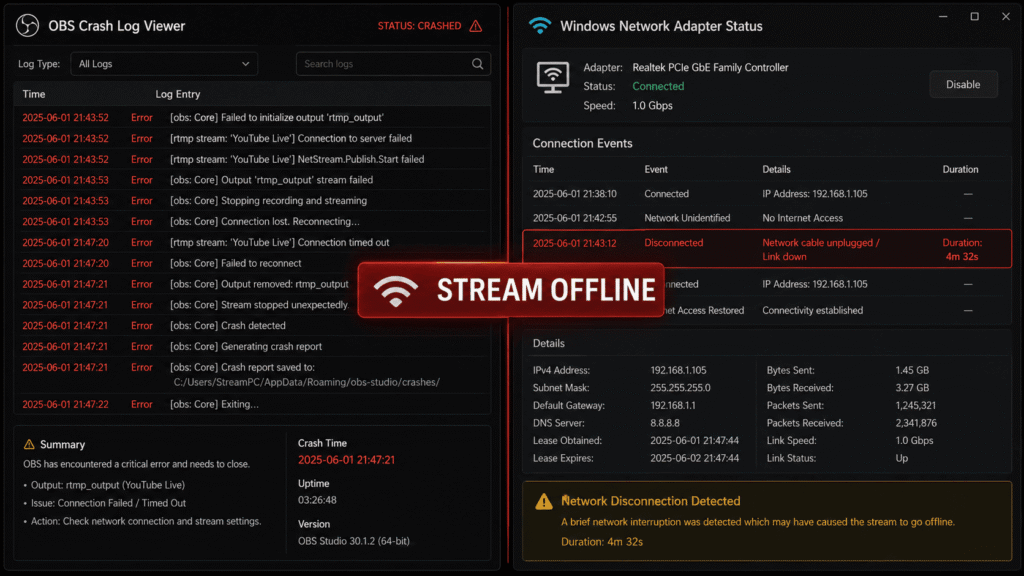
Cause #1: OBS or Streaming Software Crash
This is the number one reason 24/7 streams stop, and it happens far more often than most people realize.
OBS is designed for sessions measured in hours, not days or weeks. Over long run times, memory leaks accumulate, plugin conflicts emerge, and GPU/CPU thermal throttling causes the application to become unstable. A crash at 3am means your stream stays offline until you physically restart it — and you won’t know it happened until you check in the morning.
How to diagnose it
Open your Windows Event Viewer (or check /var/log/ on Linux) and look for application crash entries matching the timestamp when your stream went offline. OBS also writes crash logs to %appdata%\obs-studio\crashes\ on Windows. If you see crash dumps here, the software itself is the failure point.
Fixes
- Disable all OBS plugins you’re not actively using. Third-party plugins are a leading cause of memory leaks in long sessions. Remove anything non-essential.
- Cap OBS process priority at “Normal” in Task Manager. Running OBS at “Above Normal” or “High” priority creates resource contention with the OS that causes instability over multi-day runs.
- Use a crash recovery script. A Windows Task Scheduler job or a Linux shell script that checks whether OBS is running and restarts it if it isn’t can reduce downtime from crashes. It’s not a perfect fix but it reduces the offline window.
- Switch to cloud streaming. The permanent fix is removing OBS from the equation entirely. StreamKite runs your stream on remote servers — there’s nothing to crash on your local machine.
Cause #2: Internet Connection Drops
Even a brief 30-second internet outage can terminate a YouTube live stream. YouTube’s RTMP ingest expects a continuous connection — an interruption doesn’t pause the stream, it ends it. When your connection returns, you have to manually restart.
Home internet is not designed for 24/7 uptime. ISPs perform maintenance. Routers overheat. Modems drop connections during low-traffic overnight windows. Any of these ends your stream.
How to diagnose it
Check your router’s connection log (accessible through the admin panel, usually at 192.168.1.1 or 192.168.0.1). Look for disconnection events matching your stream drop timestamps. Alternatively, run a continuous ping to an external server (ping -t 8.8.8.8 on Windows, ping 8.8.8.8 on Linux/Mac) and leave it running — you’ll see dropped packets when the connection breaks.
Fixes
- Restart your router and modem on a weekly schedule. Many routers have a scheduled restart option in the admin panel. A fresh reboot weekly prevents accumulated connection state issues.
- Use wired ethernet, not WiFi. WiFi connections are significantly more vulnerable to micro-disconnections, channel congestion, and interference. If you’re running a 24/7 stream over WiFi, switching to a wired ethernet connection alone may stop most of your drops.
- Enable OBS reconnect settings. In OBS, go to Settings → Stream → set “Reconnect Delay” to 2 seconds and “Maximum Retry Attempts” to 20. This gives OBS a window to reconnect automatically after a brief internet blip without ending the stream.
- Use a cloud streaming platform. If your stream runs from a cloud server, your home internet drops are completely irrelevant. The server has datacenter-grade uptime and doesn’t care what your ISP is doing at 4am.
Cause #3: YouTube RTMP Session Timeout
YouTube’s RTMP ingest servers have session timeout behavior that many creators never learn about until their stream dies because of it.
If your stream’s bitrate drops to near-zero for an extended period — which can happen if your source video file is slow to read, your CPU maxes out, or your encoder stutters — YouTube may terminate the session even if the technical connection is still open. YouTube interprets a silent or near-zero bitrate stream as a dead stream and ends it server-side.
Fixes
- Monitor bitrate in OBS’s stats panel. Your bitrate should never drop below 80% of your target. If you’re seeing dips below 1,000 Kbps on a 4,500 Kbps stream, investigate the cause — encoding bottleneck, file read speed, or CPU overload.
- Switch to software encoding at a lower preset. If your encoder is maxing out, switch from “veryfast” to “ultrafast” in OBS settings. The quality drop is minimal at stream resolution, but the stability improvement is significant.
- Pre-encode your loop video. If you’re encoding in real-time from a source file, pre-encoding the loop video in the right format (H.264 at your target bitrate) and using OBS to stream a re-mux (not re-encode) dramatically reduces CPU load and eliminates encoding-related bitrate drops.
Cause #4: PC Going to Sleep, Rebooting, or Overheating
This one sounds obvious but it catches people constantly. Windows Update quietly reboots your machine at 3am. The PC goes to sleep after 30 minutes of “inactivity” (the screensaver doesn’t know you’re streaming). The CPU thermal throttles after 8 hours and the system shuts down.
Fixes
- Disable all sleep and hibernate settings (Control Panel → Power Options → Change plan settings → Never sleep, never hibernate, never turn off display).
- Disable automatic Windows Updates restarts. In Group Policy Editor (Windows Pro/Enterprise): Computer Configuration → Administrative Templates → Windows Update → “No auto-restart with logged-on users.” On Home: use the “Active hours” setting to cover your entire streaming window.
- Monitor CPU temperatures. Use HWMonitor or CoreTemp to check temps under load. If your CPU consistently runs above 90°C during long streaming sessions, thermal throttling and shutdown are eventual certainties. Clean the cooler, repaste, or add case airflow.
- The permanent fix: don’t use your PC at all. A cloud-based streaming platform runs on servers with professional cooling and power redundancy. Your PC’s thermal state is completely irrelevant.
Cause #5: Encoding Hardware Failure Under Sustained Load
Consumer GPUs and CPUs are tested for sustained operation under gaming conditions — typically 1–4 hour sessions with breaks in between. Running NVENC, QuickSync, or x264 encoding continuously for 7+ days is a workload pattern they aren’t designed for, and some units fail earlier than expected under this stress.
Signs: the stream drops at irregular intervals (not predictable timing), the PC doesn’t crash but OBS freezes, or you see encoding errors in OBS logs referencing the GPU encoder specifically.
Fixes
- Switch from hardware encoding (NVENC/AMF) to software encoding (x264) at a lower preset if GPU encoder failures are suspected. Software encoding bypasses the GPU entirely.
- Reduce stream resolution to 720p for 24/7 runs. Lower resolution means less encoding work, lower sustained hardware load, and significantly cooler operating temperatures. For static visual content (lofi streams, meditation, radio), 720p is barely distinguishable from 1080p.
- Schedule weekly stream restarts during low-traffic periods. This resets encoder state, clears memory, and gives hardware a brief cool-down period without significant audience impact.
Cause #6: YouTube Stream Key Expiry or Platform-Side Issues
YouTube occasionally has platform-side issues that terminate streams. Their RTMP ingest infrastructure experiences regional outages, maintenance windows, and capacity events that kill streams without any fault on your end.
Additionally, if you’re using a scheduled event’s stream key (not a persistent key), the key expires when the event window closes — ending your stream even if everything on your side is working perfectly.
Fixes
- Always use a Persistent stream key for 24/7 streams. In YouTube Studio, create a stream with “Persistent stream key” selected — this key never expires and is designed for continuous use.
- Check YouTube’s status page (youtube.com/livestreaming) and Google’s Workspace Status Dashboard when a stream drops unexpectedly. If YouTube is experiencing a platform issue, there’s nothing to fix on your side — wait and restart when the issue resolves.
- Enable OBS auto-reconnect (Settings → Stream) so that brief YouTube-side hiccups trigger an automatic reconnection rather than a permanent stream end.
Cause #7: File Read Errors in Long Loop Playback
If your source video is a local file on a spinning hard drive (HDD), file read errors become increasingly likely over extended playback. HDDs have read/write heads that physically wear, and an unusual access pattern (continuously reading the same sections of a file for days on end) can cause read errors that stutter or freeze the stream.
Fixes
- Move your loop video file to an SSD. SSDs have no moving parts and handle continuous read operations with far more reliability than HDDs. The performance difference for sustained sequential reads is significant.
- Keep your source file defragmented and on a drive with at least 20% free space. Fragmented files on near-full drives cause irregular read performance that can manifest as stream stutters.
- Upload to cloud storage rather than streaming from local disk. Cloud platforms like StreamKite store your video on professionally maintained servers with redundant storage — file read errors at the infrastructure level are extremely rare compared to consumer-grade HDDs.
The Permanent Fix: Move Your Stream to the Cloud
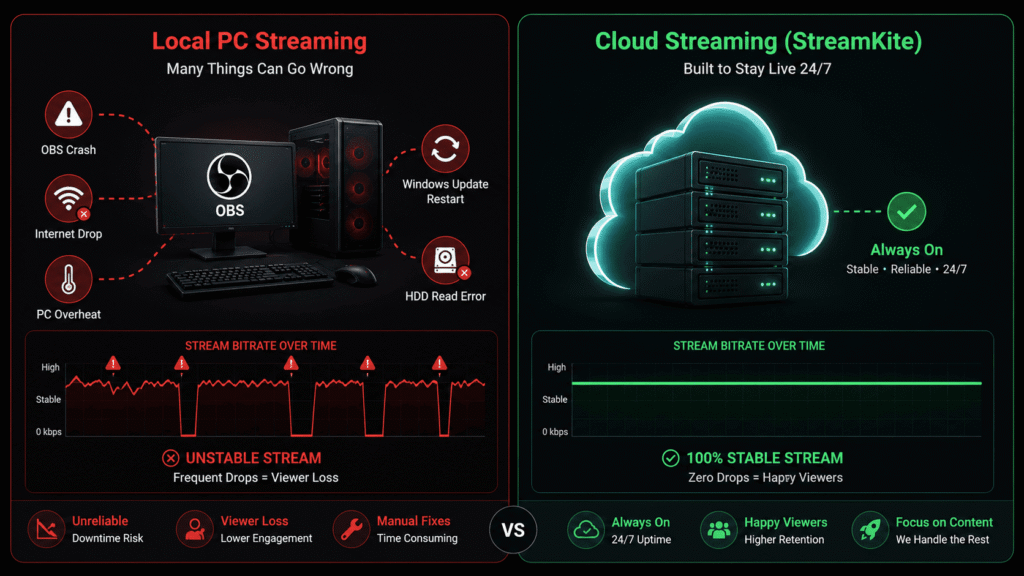
Every cause in this article has one thing in common: they all require local hardware to be running. OBS crashes because OBS is on your machine. Your internet drops because your machine is at home. Your PC overheats because it’s a consumer desktop running a workload it wasn’t designed for.
Cloud streaming platforms eliminate every single one of these failure points. When your stream runs on a remote server:
- There’s no OBS to crash — the platform manages streaming software at the infrastructure level
- Your home internet is completely irrelevant — the server has datacenter-grade connectivity
- There’s no consumer hardware to overheat — servers are professionally cooled
- Windows Update can’t reboot the stream — there’s no Windows running on your end
- File read errors are managed by enterprise storage infrastructure
StreamKite is built specifically for this. You upload your video, paste your stream key, and the stream runs in the cloud indefinitely — with automatic reconnection if YouTube drops the RTMP connection. Setup takes under 5 minutes.
Diagnostic Checklist: Why Is My 24/7 Stream Stopping?
| Symptom | Most Likely Cause | Quick Fix |
|---|---|---|
| Drops at random times, no pattern | OBS crash or internet drop | Check OBS crash logs + router log |
| Drops at exactly the same time each night | Windows Update restart or sleep timer | Disable auto-restart + sleep settings |
| Drops after exactly N hours | YouTube session timeout or HDD failure | Check bitrate stats, move file to SSD |
| Drops only when PC is under extra load | CPU/GPU overload or thermal throttle | Lower encoding preset, check temps |
| Stream shows as offline on YouTube but OBS says streaming | YouTube-side RTMP issue or key expiry | Check YouTube status, use persistent key |
| Drops every few days at irregular intervals | Memory leak in OBS plugin | Disable non-essential plugins |
FAQ — Why Does My 24/7 Live Stream Keep Stopping?
1. How do I know if OBS crashed or my internet dropped when my stream goes offline?
Check two places: OBS crash logs (found at %appdata%\obs-studio\crashes\ on Windows) and your router’s connection history (in the router admin panel under “Connected Devices” or “Connection Log”). If there’s a crash log entry matching the offline timestamp, OBS is the culprit. If the router shows a disconnection at that time and OBS log shows nothing, the internet connection is the cause.
2. Can I set OBS to automatically restart if it crashes?
OBS doesn’t have a built-in auto-restart feature. You can create a Windows Task Scheduler job or a PowerShell script that checks whether OBS is running every 5 minutes and relaunches it if not. This reduces downtime from crashes but requires maintaining the script and doesn’t address the root cause of why OBS is crashing.
3. Does YouTube end a live stream if no one is watching?
No. YouTube does not end streams due to low or zero viewership. Your stream can technically have zero concurrent viewers and run indefinitely. YouTube does have inactivity policies for extremely long-dormant streams, but these don’t apply during active RTMP sessions. Your stream ending without viewers is caused by a technical issue on your end, not YouTube.
4. How long can a YouTube persistent live stream run continuously?
YouTube doesn’t publish a hard maximum for continuous live stream duration. In practice, streams have run continuously for months. YouTube does periodically archive very long streams into replay videos, but this doesn’t interrupt the live stream itself. Your duration is limited by your streaming infrastructure’s uptime, not YouTube’s platform.
5. Will my stream stop if YouTube goes down for maintenance?
YouTube’s maintenance and platform issues can interrupt streams, but these are rare and typically short-lived. When YouTube’s RTMP ingest has issues, most well-configured streaming setups (with auto-reconnect enabled) will reconnect automatically within a few minutes once the platform stabilizes. Check the YouTube status page if you notice widespread stream drops across multiple channels simultaneously.
6. Is there a way to get notified when my stream goes offline?
Yes. You can set up a Zapier or Make (formerly Integromat) automation that monitors your YouTube channel’s live status via the YouTube Data API and sends you a notification (email, Telegram message, or SMS) when the stream goes offline. This doesn’t prevent drops but ensures you know about them quickly. StreamKite users benefit from the platform’s built-in monitoring, which handles reconnection automatically without requiring manual notification workflows.
7. Does changing stream settings while live cause a disconnect?
In OBS, yes — most encoding changes require restarting the stream. In cloud streaming platforms like StreamKite, you can update settings from the dashboard and the platform manages the transition without a hard disconnect. If you need to change settings on a running OBS stream, make the change during a low-traffic period and be prepared for a brief offline window.
8. My stream runs fine for 48 hours then always drops — what causes this specifically?
A 48-hour pattern usually points to a memory leak in OBS or one of its plugins. Over roughly 2 days of continuous operation, accumulated unreleased memory eventually pushes OBS into an unstable state that causes a crash. The fix is identifying and removing the leaking plugin (Browser Source and some NDI plugins are common culprits) or scheduling a forced OBS restart every 24 hours during a low-viewership window.
Stop Babysitting Your Stream. Let the Cloud Run It.
Every cause in this guide is a problem you only have because your stream runs on local hardware. Move it to the cloud and you stop managing crashes, internet drops, overheating hardware, and Windows Update restarts forever.
StreamKite lets you run a 24/7 live stream from any device without keeping your PC on. No technical knowledge needed. Setup takes under 5 minutes.
Start your 24/7 loop stream today
Run a nonstop YouTube live stream from any device.
No PC required. No technical knowledge needed.
