

A YouTube stream disconnect is more than an inconvenience. It breaks viewer momentum, loses accumulated watch time, and — if it happens overnight on a 24/7 stream — leaves your channel dark for hours before you even realize it.
The frustrating part is that most stream disconnects are preventable. They happen for specific, diagnosable reasons — and each one has a fix.
This guide covers every cause of YouTube live stream disconnects and the exact steps to prevent them from happening again.
How YouTube Live Stream Connections Actually Work
Understanding why disconnects happen requires understanding what’s actually happening technically when you stream.
When you go live, your streaming software (OBS, FFmpeg, or a cloud platform) pushes a continuous RTMP video stream to YouTube’s ingest servers at a URL that looks like rtmp://a.rtmp.youtube.com/live2/YOUR-KEY. YouTube’s server receives that stream and makes it available to viewers in real time.
This connection is a persistent TCP session. Like any TCP connection, it requires both ends to continuously send data and acknowledge receipt. If either end stops responding — because your encoder dropped, your internet disconnected, or YouTube’s server had an issue — the session terminates. Unlike a web page that can be reloaded, a terminated RTMP session ends the live stream. To resume, you have to start a completely new session.
This architecture is why brief interruptions are so damaging to 24/7 streams, and why auto-reconnect is so important. If you’re not already using a setup with built-in auto-reconnect, read our guide on how to stream pre-recorded videos live on YouTube before continuing.
Prevention #1: Enable OBS Auto-Reconnect (And Configure It Correctly)
OBS has a built-in reconnect feature that most users never configure properly. By default, the settings are too conservative for reliable 24/7 operation.
In OBS, go to Settings → Stream:
- Reconnect Delay: 2 seconds (shorter is better — starts reattempting faster)
- Maximum Retry Attempts: 20 (default is often 0 — which means no auto-reconnect at all)
With these settings, if your stream drops, OBS will automatically attempt to reconnect every 2 seconds, up to 20 times. If your internet blip lasts less than 40 seconds, the stream reconnects automatically without any viewer-visible interruption beyond a brief pause.
Important note: OBS auto-reconnect does NOT work if OBS itself crashes. It only handles connection-level drops where OBS is still running but the RTMP session ended. For crash recovery, you need a separate script (see Article 1 in this series).
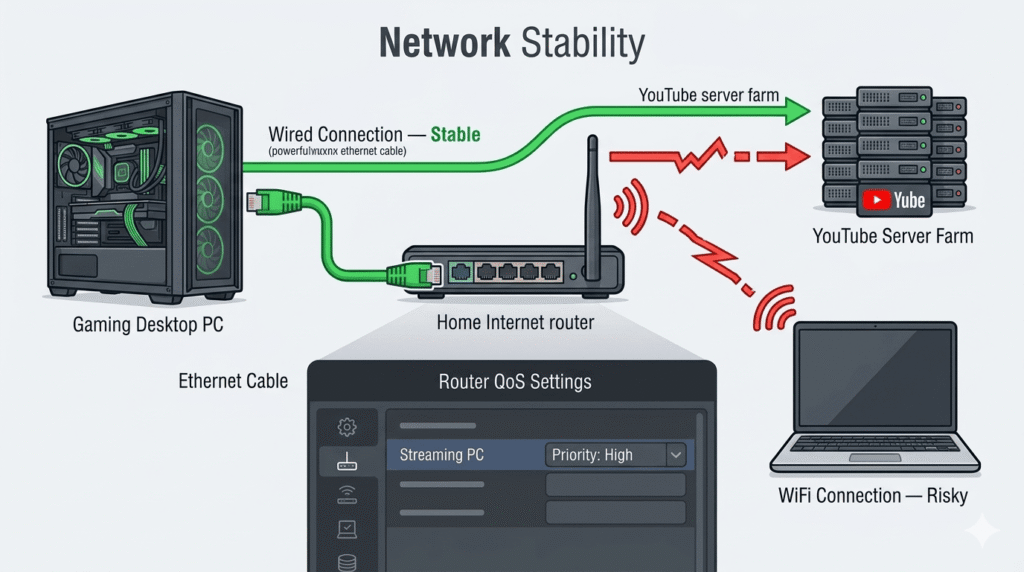
Prevention #2: Use a Wired Ethernet Connection
This is the single highest-impact change most home streamers can make. WiFi connections drop packets, experience interference, and have variable latency in ways that wired ethernet simply doesn’t.
Studies of home network performance consistently show that WiFi connections have 2–10× more packet loss than wired ethernet under typical household conditions — and even very low packet loss (0.5%) causes problems for the continuous RTMP stream that YouTube live streaming requires.
If your streaming PC is too far from your router for a direct ethernet run, powerline ethernet adapters (which use your home’s electrical wiring as a network cable) are a significantly more reliable alternative to WiFi for streaming purposes.
Prevention #3: Dedicate Bandwidth to Your Stream
A 1080p stream at 4,500 Kbps requires 4.5 Mbps of sustained upload bandwidth. That sounds modest, but if your household internet is shared — someone downloading games, streaming Netflix, on a video call — your upload bandwidth can fluctuate below what the stream requires, causing the bitrate to dip and YouTube to drop the connection.
Fixes:
- Enable QoS (Quality of Service) on your router. Most modern routers allow you to prioritize traffic from specific devices or applications. Set your streaming PC’s traffic to the highest priority. This doesn’t add bandwidth but ensures your stream gets first access to what’s available.
- Set your stream bitrate to 80% of your available upload speed. If you have 10 Mbps upload, cap your stream at 8,000 Kbps maximum — leaving 20% headroom for normal household usage and connection overhead.
- Schedule heavy downloads to off-peak hours. Game updates, large file downloads, and cloud backups should be scheduled to run when the stream isn’t your priority.
Prevention #4: Use a Persistent Stream Key (Not Event Keys)
YouTube offers two types of stream keys: Persistent stream keys and Event (scheduled) stream keys.
Event stream keys expire when the scheduled event window closes. If you’re using an event key for a 24/7 stream and the event window ends — even while the stream is technically running — YouTube terminates the RTMP session. This looks exactly like a network disconnect but has nothing to do with your connection.
For any stream meant to run continuously:
- Go to YouTube Studio → Go Live → Manage
- Create a stream with Persistent stream key selected
- Copy this key and use it in all your streaming software configurations
Persistent stream keys don’t expire. Your stream will stay live as long as you’re pushing video to the key.
Prevention #5: Keep Your Bitrate Stable (Use CBR, Not VBR)
Variable Bitrate (VBR) encoding adjusts the bitrate up and down based on scene complexity — which is appropriate for video files but problematic for live streams. When VBR drops the bitrate significantly during a simple scene, YouTube’s ingest server may interpret the sudden drop as a connection problem and start the disconnect process.
Always use Constant Bitrate (CBR) for live streaming:
- In OBS: Settings → Output → Rate Control → CBR
- In FFmpeg: add
-b:v 4500k -maxrate 4500k -bufsize 9000kto your encoding arguments
CBR ensures a consistent data stream that YouTube’s ingest servers can rely on. It uses slightly more data than VBR on simple scenes but maintains the stable connection that 24/7 streaming requires.
Prevention #6: Monitor Stream Health Proactively
YouTube Studio’s Live Control Room has a Stream Health panel that shows you real-time bitrate, frame rate, and connection quality. Most disconnects give warning signs before they happen — a bitrate graph that starts fluctuating, dropped frames climbing gradually, or brief “Poor” health statuses that precede a full disconnect.
Tools to monitor your stream health:
- YouTube Studio Live Control Room — available while the stream is live, shows all key metrics
- OBS Statistics panel (View → Stats) — shows encoding performance, dropped frames, and render lag in real time
- Uptime monitoring services (UptimeRobot, BetterUptime) — can monitor whether your YouTube channel is currently live and send alerts when it goes offline
Setting up an alert that notifies you when your stream goes offline means you know within minutes rather than hours — significantly reducing total downtime even when you can’t prevent every disconnect.
Prevention #7: Switch to Cloud Streaming for Disconnect-Proof Uptime
All the preventions above assume your stream runs from a home network. But home networks are fundamentally less reliable than datacenter infrastructure — they have consumer-grade hardware, shared ISP connections, and single points of failure that professional infrastructure doesn’t.
The most complete prevention for YouTube stream disconnects caused by home network issues is moving the stream to the cloud. StreamKite runs your stream from servers with:
- Datacenter-grade uptime (99.9%+ network availability)
- Multiple redundant network connections per server
- Automatic reconnect to YouTube if the RTMP session drops
- No dependency on your home router, ISP, or local hardware
Your home internet can go down entirely, your router can reboot, your ISP can have an outage — and your YouTube stream stays live because it’s running from a server that isn’t affected by any of those events.
YouTube Stream Disconnect — Cause and Prevention Summary
| Disconnect Cause | Prevention Method | Difficulty |
|---|---|---|
| OBS crashes | Auto-restart script + plugin cleanup | Medium |
| Home internet drops | Wired ethernet + router QoS | Easy |
| Bitrate fluctuation | CBR encoding + bandwidth headroom | Easy |
| Event stream key expiry | Use Persistent stream key | Easy |
| YouTube platform issues | OBS auto-reconnect enabled | Easy |
| All home network causes | Switch to cloud streaming (StreamKite) | Very Easy |
FAQ — Preventing YouTube Stream Disconnects
1. How quickly does a YouTube live stream end after a disconnect?
YouTube’s RTMP ingest has a short grace period after a connection drops — typically 30–60 seconds — during which it waits for a reconnect before officially ending the stream. If you reconnect within this window, most viewers won’t notice a disruption. If the connection isn’t restored within the grace period, the stream ends and viewers see the channel as offline.
2. Does YouTube send a notification when your stream disconnects?
YouTube does not send automatic email or push notifications when a stream disconnects. You can receive notifications via YouTube Studio’s mobile app if you have alerts enabled, but these are not guaranteed to be immediate. Third-party monitoring tools (UptimeRobot, BetterUptime, or custom API scripts using YouTube Data API) provide more reliable disconnect alerts.
3. Will enabling OBS auto-reconnect cause any issues with my stream?
Auto-reconnect creates a new RTMP session when it reconnects — which means the live stream technically starts a new broadcast session. Viewers who were watching will see a brief interruption. The reconnected stream continues as the same YouTube live event, but watch time accumulated before the disconnect is separate from watch time after. For practical purposes, this is far better than staying offline until you manually restart.
4. Can I use a mobile hotspot as a backup connection for stream stability?
Yes. Some streamers configure OBS with a primary wired connection and a backup mobile hotspot using network bonding software (Speedify, Connectify) that automatically switches between connections if the primary drops. This is a valid redundancy approach for high-stakes streams. For casual 24/7 loop streams, the cost and complexity of maintaining a mobile backup connection is usually not justified — cloud streaming achieves the same redundancy more simply.
5. What’s the ideal buffer size setting for a stable 24/7 YouTube stream?
In FFmpeg-based streaming, set the buffer size (-bufsize) to 2× your target bitrate. For a 4,500 Kbps stream, use -bufsize 9000k. This gives the encoder enough buffer to absorb short-term bitrate fluctuations without the output deviating from the CBR target. In OBS, the buffer size is managed automatically when CBR mode is selected — there’s no manual adjustment needed.
6. Does ISP throttling cause stream disconnects?
ISP throttling of streaming traffic can cause bitrate drops that trigger YouTube disconnects, but this is relatively rare for RTMP traffic (which is often indistinguishable from regular TCP traffic to ISPs). More commonly, ISP issues manifest as general bandwidth limitations during peak hours. If you notice disconnects at specific times each day (evenings, weekends) coinciding with high network usage in your area, ISP congestion is a likely factor.
7. Is there a way to test my connection stability before starting a 24/7 stream?
Yes. Run a continuous ping test to YouTube’s RTMP server address for 10–15 minutes: ping -t a.rtmp.youtube.com on Windows. Watch for packet loss (any lost packets) and latency spikes above 100ms. These indicate connection instability that will cause stream problems. Also run a speed test during peak household usage to confirm your upload speed has enough headroom for your stream bitrate.
8. Can switching to a different YouTube RTMP ingest server improve stability?
Yes. YouTube provides multiple regional RTMP ingest endpoints. The default a.rtmp.youtube.com automatically routes to the nearest server, but if you’re experiencing consistent issues, you can try specific regional endpoints (b.rtmp.youtube.com, or region-specific ones listed in YouTube’s support documentation). The stream key remains the same — only the server URL changes.
Stream Without the Disconnects. Move to the Cloud.
Home network instability is the root of most YouTube stream disconnects. The complete solution is moving your stream to infrastructure that doesn’t depend on your home connection.
StreamKite lets you run a 24/7 live stream from any device without keeping your PC on. No technical knowledge needed. Setup takes under 5 minutes.
Start your 24/7 loop stream today
Run a nonstop YouTube live stream from any device.
No PC required. No technical knowledge needed.
