

OBS Studio is the most popular streaming software in the world. It’s also one of the most unreliable tools you can choose for a stream that needs to run continuously for days at a time — and most people don’t find this out until their setup crashes at the worst possible moment.
If your OBS has crashed during a long stream, you’re not alone. The causes are specific, diagnosable, and — in many cases — preventable. This guide covers every reason OBS crashes during extended streams and what to do about each one.
Why OBS Isn’t Built for 24/7 Operation
OBS is built and tested for typical streaming use cases: gaming sessions of 2–6 hours, live podcast recordings, interactive streams where someone is present. The test coverage and development focus reflects this — it’s not designed to run unattended for 7 days straight.
The consequences of this design gap show up in several ways: memory that gets allocated for plugin operations never fully returns to the OS, GPU VRAM usage creeps upward over multi-day runs, and accumulated state in the compositing pipeline can create instability that wouldn’t appear in a normal 4-hour session.
None of this means OBS is bad software. It means it’s the wrong tool for the specific job of unattended 24/7 broadcasting. Understanding the mismatch is the starting point for either fixing the problem within OBS or eliminating it by switching to a purpose-built alternative.
Before we go through each crash cause, if you’re running a pre-recorded video loop as your content, there’s a fundamentally better architecture for this use case explained in our guide on how to stream pre-recorded videos live on YouTube.
How to Find Your OBS Crash Logs
Every OBS crash writes a crash log. Reading these logs is the most direct way to identify why your stream went down. Before trying any of the fixes below, find the relevant crash log first.
Windows: Open File Explorer and navigate to %appdata%\obs-studio\crashes\. You’ll see files named with timestamps — find the one matching when your stream died.
macOS: Navigate to ~/Library/Application Support/obs-studio/crashes/.
Linux: Crash logs are typically in ~/.config/obs-studio/crashes/, and you can also check journalctl -xe for system-level errors.
Open the crash log and look for the first line of the stack trace — this identifies the DLL, plugin, or system component that triggered the crash. That name is your starting point for the fix.
Crash Cause #1: Memory Leaks in Plugins
This is the leading cause of OBS crashes during long streams. Third-party plugins — browser sources, stream deck integrations, NDI plugins, virtual camera plugins — often have memory management issues that are harmless during short sessions but fatal over multi-day runs.
Here’s how it happens: the plugin allocates memory for a task (loading a browser source, processing an audio input) but doesn’t properly release that memory when the task completes. Over hours and days, the unreleased memory accumulates. When OBS’s total memory usage exceeds available RAM, Windows forces the application to terminate — which looks from the outside like a crash.
How to identify it
Open Task Manager during a long stream and watch obs64.exe’s memory column over time. If memory usage is continuously climbing — not stable — a plugin is leaking. Normal OBS memory usage for a simple stream should be relatively stable at 500MB–1.5GB depending on sources. If you’re seeing it grow past 2GB or more over a 12-hour run, a plugin is the culprit.
Fixes
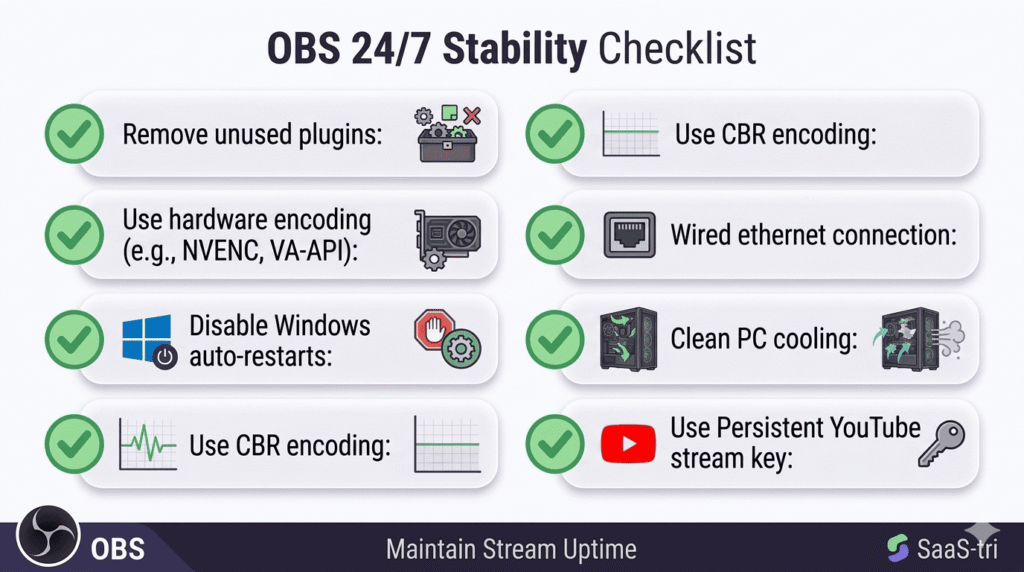
- Remove all plugins you’re not actively using. For a 24/7 unattended loop stream, you likely don’t need browser sources, stream deck plugins, or alert overlays. A minimal plugin set dramatically reduces crash risk.
- Replace Browser Sources with Image Sources. Browser Sources are one of the most common memory-leaking components in OBS. If you’re using browser sources for animated overlays or information displays on a 24/7 stream, try replacing them with pre-rendered image or video files instead.
- Update all plugins to their latest version. Many memory leaks are fixed in newer plugin versions. Check the GitHub repository or OBS forum thread for each plugin you use and update to the current stable release.
Crash Cause #2: GPU Driver Issues and NVENC/AMF Encoder Failures
If your crash log references GPU components — nvEncodeAPI.dll, libobs-opengl.dll, or AMD-related libraries — the GPU or its driver is involved in the crash.
GPU crashes during long OBS runs typically have three causes: driver instability under sustained load, VRAM exhaustion after the compositing pipeline accumulates unreleased resources, or hardware-level NVENC encoder failures under continuous operation.
Fixes
- Update GPU drivers. Outdated GPU drivers are a common source of encoder crashes that have been fixed in newer versions. For NVIDIA: GeForce Experience or direct download from nvidia.com. For AMD: Radeon Software or amd.com.
- Perform a clean driver install. Use Display Driver Uninstaller (DDU) to completely remove the existing driver before installing the new one. Residual driver files from previous installations can cause instability that a standard update doesn’t resolve.
- Switch from NVENC to x264 encoding if NVENC encoder DLL errors appear in crash logs. Software encoding (x264) removes the GPU encoder from the crash path — the encoding happens entirely on the CPU.
- Reduce OBS’s GPU memory footprint. Remove high-resolution sources, reduce the canvas resolution, and minimize the number of GPU-intensive effects (blur, color correction) applied to sources in the scene.
Crash Cause #3: Windows Automatic Updates Forcing Restarts
This one is technically not a crash — Windows Update restarts the machine, which closes OBS as part of the shutdown. But from a stream continuity perspective the result is identical: your stream goes offline while you’re asleep and doesn’t come back.
Many creators spend hours debugging “OBS crashes” that are actually caused by Windows Update quietly rescheduling a forced restart outside their configured active hours.
How to identify it
Check Windows Event Viewer → Windows Logs → System. Look for “User32” or “Microsoft-Windows-Winlogon” events at your stream’s offline timestamp. A “The process wininit.exe has initiated the restart of computer” entry confirms Windows, not OBS, ended the session.
Fixes
- Windows Pro/Enterprise: Open Group Policy Editor (gpedit.msc) → Computer Configuration → Administrative Templates → Windows Components → Windows Update → “No auto-restart with logged-on users for scheduled automatic updates installations.” Set to Enabled.
- Windows Home: Settings → Windows Update → Advanced Options → “Active Hours.” Set active hours to cover your entire streaming window (e.g., 6AM–2AM). Note: Windows Home has a maximum active hours window of 18 hours.
- Pause updates during stream periods. Windows Update allows pausing updates for up to 5 weeks. This is a temporary measure — don’t pause indefinitely as security patches are important.
Crash Cause #4: Virtual Camera or Audio Device Disconnect
If OBS is using a virtual audio device (Virtual Audio Cable, Voicemeeter) or a virtual camera as a source, and that device becomes unavailable during the stream, OBS can crash rather than gracefully handling the missing device.
Virtual audio devices in particular can become unstable after system updates, when audio drivers restart, or when the physical audio device they route through is disconnected.
Fixes
- For a 24/7 loop stream with pre-recorded video, remove all virtual audio devices from OBS. If your audio comes from the video file itself, you don’t need any virtual audio routing — OBS reads audio directly from the media source file.
- Replace any virtual camera sources with direct file sources. If your stream sources a virtual camera that renders from another application, replace it with a direct file reference. Virtual cameras add an extra layer of software that can fail independently of OBS.
- Set audio device fallback in Windows. Control Panel → Sound → set a hardware audio device as the default rather than a virtual device. This ensures system audio has a hardware fallback if a virtual device crashes.
Crash Cause #5: Corrupted OBS Configuration or Scene Collection
Over time, OBS’s configuration files can become corrupted — especially on machines that have been through multiple OBS versions, OS updates, or irregular shutdowns. A corrupted scene collection can cause OBS to crash when loading, when switching scenes, or when a particular source file is accessed.
Fixes
- Create a fresh, minimal scene collection for 24/7 streaming. Don’t reuse a complex gaming or interactive stream scene collection. Create a new collection with only what’s needed: one scene, one media source (your loop video), and nothing else.
- Reinstall OBS with a clean profile. Back up your existing scene collections (found in
%appdata%\obs-studio\), uninstall OBS completely using an uninstaller like Revo Uninstaller to catch all residual files, then reinstall fresh. Start with a minimal configuration. - Use OBS’s Safe Mode (launch from command line with
--safe-mode) to start OBS without loading any plugins. If OBS runs stably in safe mode but crashes with plugins enabled, a plugin is the culprit.
Crash Cause #6: Thermal Throttling Leading to Encoder Failure
When your CPU or GPU overheats under sustained streaming load, the hardware reduces its operating frequency (thermal throttling) to manage heat. This causes the encoder to fall behind — it can’t process frames fast enough at the reduced clock speed. The result is encoder overload, frame buffer overflow, and ultimately an OBS crash or forced termination.
This is particularly common on laptops and compact desktop systems with limited thermal capacity, and on machines where dust has accumulated in cooling systems over months or years of use.
Fixes
- Clean your PC’s cooling system. Accumulated dust on heatsinks and fan blades dramatically reduces cooling efficiency. Compressed air cleaning of all intake and exhaust vents, heatsinks, and fans can reduce sustained temperatures by 10–20°C.
- Repaste your CPU and GPU. Thermal paste between the processor and heatsink dries out over time, reducing heat transfer efficiency. Repasting every 2–3 years with a quality compound (Thermal Grizzly Kryonaut, Noctua NT-H1) can reduce temperatures by 5–15°C.
- Monitor temperatures during streaming. Use HWMonitor or CoreTemp to log temperatures during a sustained stream. If you see CPU sustained above 90°C or GPU above 85°C, thermal throttling is likely and hardware attention is needed before it causes stream crashes.
The Alternative: Don’t Use OBS for 24/7 Streams
Every fix in this guide is a mitigation. You’re managing the symptoms of a fundamental mismatch between the tool and the job.
OBS is a broadcast production application designed for active, supervised sessions. Using it for 24/7 unattended streaming is like using a sports car for long-haul trucking — technically possible, practically unreliable.
For 24/7 pre-recorded loop streams, the correct tool is either:
- FFmpeg on a VPS — minimal memory footprint, no GUI, designed for sustained operation, requires Linux/command-line knowledge
- StreamKite — managed cloud platform, no software to crash, automatic reconnect, no local hardware involved, setup in under 5 minutes
If your content is a pre-recorded loop (lofi music, meditation, ambient, podcast, church replay, IPTV), there’s no reason to use OBS. The crash risk OBS carries over long sessions is a problem you don’t need to have.
OBS Crash Cause Summary
| Crash Cause | How to Identify | Primary Fix |
|---|---|---|
| Plugin memory leak | Memory usage climbing in Task Manager | Remove non-essential plugins |
| GPU driver / NVENC failure | GPU DLL in crash log stack trace | Clean GPU driver reinstall |
| Windows Update restart | System event log “wininit.exe restart” | Disable auto-restart via Group Policy |
| Virtual audio/camera disconnect | Audio/camera DLL in crash log | Remove virtual devices from scene |
| Corrupted scene/config | Crashes on specific source access | Fresh minimal scene collection |
| Thermal throttling | High temps in HWMonitor pre-crash | Clean cooling, repaste CPU/GPU |
| All of the above permanently | N/A | Switch to StreamKite cloud streaming |
FAQ — OBS Crashes During Long Streams
1. Is OBS 64-bit more stable than 32-bit for long streams?
Yes, significantly. 32-bit OBS has a hard memory limit of approximately 4GB, which can be reached during long sessions with multiple sources. 64-bit OBS has no practical memory ceiling. If you’re using a version of OBS older than v26, upgrading to a current 64-bit release is the first thing to do. Modern OBS installations are 64-bit by default.
2. Does having too many scenes in OBS cause crashes?
Indirectly. Each scene holds source references, and complex scene collections consume more memory and can take longer to render, increasing strain on the compositing pipeline. For a dedicated 24/7 stream, a scene collection with a single scene and one or two sources is ideal. There’s no reason to have 20 scenes in a scene collection used only for an unattended loop stream.
3. Can running OBS on a dedicated GPU reduce crashes?
Yes. On systems with both an integrated GPU and a dedicated GPU (common on laptops and some desktops), running OBS on the dedicated GPU reduces the shared resource contention that can cause instability. Right-click the OBS executable → Run with graphics processor → High-performance GPU. This also improves encoding performance.
4. Does OBS have a built-in watchdog or health monitor?
OBS does not have a built-in watchdog that restarts it after a crash. You can create one externally using Windows Task Scheduler: a scheduled task that runs every 5 minutes, checks whether obs64.exe is running, and relaunches OBS with a scene collection argument if it isn’t. This requires PowerShell scripting and isn’t a perfect solution, but it minimizes downtime from crashes that the other fixes don’t prevent.
5. Why does OBS crash specifically when my screen saver or display turns off?
Some OBS versions and display capture configurations crash when the display state changes — when the monitor goes to sleep, the display capture source loses its target. The fix is to either disable display sleep settings (Control Panel → Power Options → Never turn off display) or switch from Display Capture to Window Capture or Media Source for your stream content.
6. Do I need to update OBS regularly to prevent long-stream crashes?
Yes. OBS releases typically include stability fixes for memory leaks, encoder handling, and plugin compatibility issues. Running an outdated OBS version means running with known bugs that may already have been patched. Help → Check for Updates in OBS, or download the latest version from obsproject.com, before investigating crashes in older versions.
7. Is Streamlabs OBS more stable than OBS Studio for long streams?
No. Streamlabs OBS is built on OBS Studio’s core but adds additional proprietary layers that generally make it less stable for long sessions, not more. Streamlabs adds alert handling, dashboard integration, and cloud backup features — all of which add memory and processing overhead that compounds over long runs. For 24/7 streaming, OBS Studio with a minimal plugin set is more stable than Streamlabs OBS.
8. What’s the longest OBS has ever run continuously without crashing?
This varies enormously by hardware and configuration. Well-optimized setups with minimal plugins on quality hardware have run for 2–4 weeks without issues. More typical home setups with several plugins and background services often experience crashes within 3–7 days. The variance is high enough that planning for crashes rather than assuming stability is the correct operational posture — which is exactly why cloud streaming is more reliable than any local OBS setup.
Stop Fighting OBS. Use a Platform Built for 24/7 Streams.
OBS is excellent software for what it’s designed to do. Long-term unattended streaming isn’t it. For 24/7 loop streams, the right infrastructure is purpose-built for the job.
StreamKite lets you run a 24/7 live stream from any device without keeping your PC on. No OBS. No crashes. No 3am disasters. Setup takes under 5 minutes.
Start your 24/7 loop stream today
Run a nonstop YouTube live stream from any device.
No PC required. No technical knowledge needed.
