

GPU overheating is one of the most common reasons 24/7 streams fail — and one of the least talked about in streaming setup guides. Most guides cover software settings. Almost none of them cover the thermal reality of asking a consumer graphics card to encode video continuously for weeks at a time.
This guide covers the thermal causes of GPU overheating during 24/7 streaming and every option for managing it — from simple software changes to hardware interventions to eliminating GPU encoding from the pipeline entirely.
Why GPU Overheating Is Different for 24/7 Streams
Consumer GPUs (NVIDIA GeForce, AMD Radeon) are designed and tested for gaming workloads — sustained 2–6 hour sessions with brief cool-down periods between uses. Thermal specifications are written with this use pattern in mind.
Running NVENC or AMF hardware encoding continuously for 7, 14, or 30 days is a completely different thermal scenario. The GPU’s dedicated video encoder block (separate from the shader cores used for games) runs continuously at a temperature that the card’s thermal design handles for short periods but may struggle with over weeks.
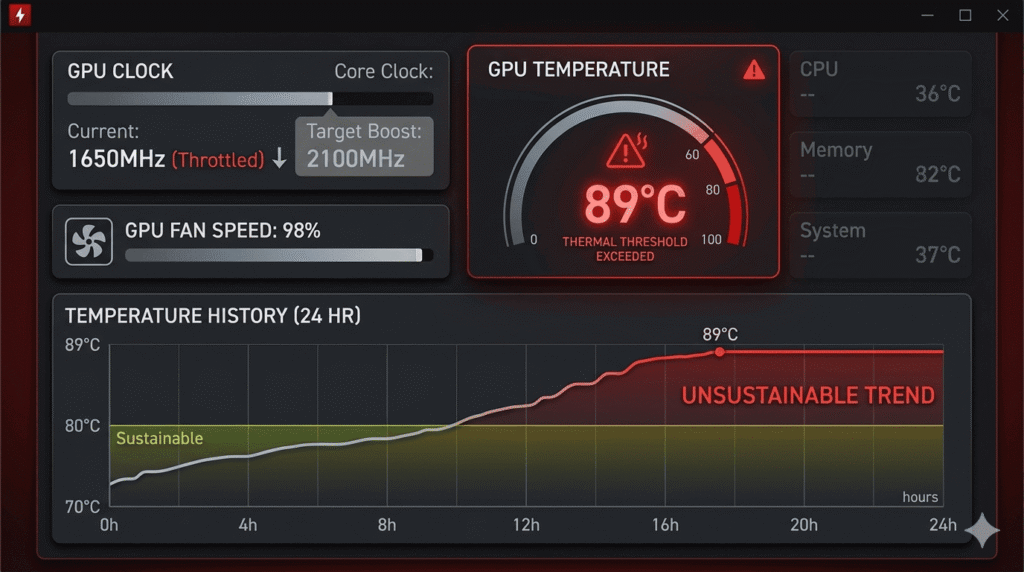
Signs that GPU overheating is affecting your stream:
- Stream drops at irregular intervals, especially during hot weather or after extended run time
- NVENC encoder errors in OBS logs (references to nvEncodeAPI.dll)
- GPU temperature readings above 80°C sustained (check with GPU-Z or HWMonitor)
- GPU clock speed dropping below boost speed during streaming (thermal throttling indicator)
- Visual artifacts or green/pink frames in the stream output
If you’re running pre-recorded content as a loop stream, there’s a simpler architecture that removes GPU encoding entirely — see our guide on how to stream pre-recorded videos live on YouTube.
Fix #1: Set a Custom Fan Curve for 24/7 Streaming
By default, GPU fan curves are tuned for gaming — they ramp up aggressively but return to low speeds quickly when load decreases. For 24/7 streaming where the load is constant and sustained, this profile means fans run at insufficient speeds for the sustained thermal load.
Use MSI Afterburner (NVIDIA and AMD) to create a custom fan curve specifically for 24/7 streaming operation:
- At 60°C: 50% fan speed (vs default ~30%)
- At 70°C: 70% fan speed (vs default ~50%)
- At 75°C: 85% fan speed (vs default ~65%)
- At 80°C: 100% fan speed
This keeps temperatures 8–15°C lower than the default profile during sustained encoding. The cost is slightly more fan noise — acceptable for a 24/7 dedicated streaming machine.
Fix #2: Undervolt Your GPU
GPU undervolting reduces the voltage supplied to the GPU core while maintaining the same or similar clock speeds. Lower voltage means lower heat output with no performance penalty — or minimal performance penalty at the same thermal envelope.
Modern NVIDIA GPUs can typically be undervolted using MSI Afterburner’s voltage/frequency curve editor. Reducing voltage by 50–100mV is usually achievable without stability issues and reduces GPU temperatures by 5–10°C under sustained load.
AMD GPUs undervolting varies by model — Radeon RX 5000 series and newer support per-state voltage control through Radeon Software or MSI Afterburner.
This is the highest-impact software fix for GPU thermal management during 24/7 streaming. It’s free, reversible, and the temperature reduction is significant.
Fix #3: Improve Case Airflow
A GPU can generate perfectly good airflow over its own heatsink but still overheat if the case isn’t exhausting hot air effectively. In most mid-tower cases, the GPU is the largest heat generator in the system. If case airflow doesn’t adequately exhaust GPU-heated air, the GPU’s own fans are recycling pre-heated air — significantly reducing cooling effectiveness.
Airflow improvements for dedicated streaming machines:
- Add a rear exhaust fan if one isn’t present (90% of cases have the rear fan slot)
- Ensure front intake fans are present and have clean filters (clogged filters block 30–50% of intake airflow)
- Route all cables away from GPU airflow path
- Remove unused expansion slot covers to allow passive rear exhausting
- Orient the case for maximum passive airflow — don’t enclose it in a desk cabinet
Fix #4: Clean Your GPU Heatsink and Replace Thermal Pads
Consumer GPUs that have been in service for 2+ years often have significant dust accumulation on the heatsink fins and degraded thermal pads between the VRAM chips and heatsink. Both of these increase temperatures under sustained load.
Cleaning procedure:
- Power down, remove GPU from system
- Remove the heatsink (typically 4–6 screws on the PCB underside)
- Clean all fan blades and heatsink fins with compressed air
- Replace thermal paste between the GPU core and heatsink (Thermal Grizzly Kryonaut recommended)
- Replace thermal pads on VRAM and VRM components (match thickness to original — typically 0.5mm–2mm)
Expect 10–20°C temperature reduction from a clean heatsink and fresh thermal interface materials. For a GPU that was hitting 90°C, this can bring it down to a sustainable 70–75°C range.
Fix #5: Switch to x264 Software Encoding
If GPU overheating is the specific problem, the most immediate fix is removing the GPU from the encoding pipeline entirely by switching to x264 software encoding in OBS.
x264 runs entirely on the CPU. Your GPU is completely idle during the stream (assuming you’re streaming a pre-recorded video file rather than capturing from a game). GPU temperatures drop to near-idle levels.
The tradeoff: higher CPU usage. If your CPU has thermal headroom, this is a clean solution. If both your CPU and GPU are already hot, neither hardware encoding option solves the root thermal problem — and cloud streaming becomes the practical solution.
Fix #6: Stream From the Cloud (Eliminate Hardware Encoding Entirely)
The most complete solution to GPU overheating during 24/7 streaming is running the stream from a cloud platform. When StreamKite runs your stream, the encoding happens on their servers’ CPUs — your GPU is completely uninvolved.
Your GPU can run at idle temperatures 24/7. It lives longer. Your stream is more stable. And you’re no longer paying the electricity cost of running a GPU under sustained load around the clock.
For pre-recorded loop streaming specifically — lofi, meditation, ambient, podcast, IPTV — cloud streaming eliminates every hardware thermal problem in one change.
GPU Thermal Management Summary
| Fix | Temp Reduction | Difficulty | Cost |
|---|---|---|---|
| Custom fan curve | 5–10°C | Easy | Free |
| GPU undervolting | 5–10°C | Medium | Free |
| Improve case airflow | 5–15°C | Easy–Medium | $10–30 (fans) |
| Clean heatsink + repaste | 10–20°C | Medium | $10–20 (materials) |
| Switch to x264 (CPU) | GPU drops to idle | Easy | Free |
| Cloud streaming (StreamKite) | GPU stays at idle permanently | Very Easy | Affordable |
FAQ — Streaming 24/7 Without GPU Overheating
1. What GPU temperature is safe for sustained 24/7 NVENC encoding?
Most consumer NVIDIA GPUs have a thermal design spec (TjMax) of 90–93°C. For sustained 24/7 operation, running consistently above 80°C reduces long-term component lifespan and increases crash risk. Target under 75°C for sustained 24/7 encoding — this provides thermal headroom for ambient temperature variations and hardware degradation over time.
2. Does NVENC use the same part of the GPU as gaming?
No. NVENC has a dedicated encoder block on NVIDIA GPUs that operates independently from the shader cores used for graphics rendering. Running NVENC encoding doesn’t affect gaming performance (and vice versa). However, NVENC does share the same power delivery and cooling infrastructure as the rest of the GPU — if the GPU overall runs hot, the encoder block is affected by the same thermal environment.
3. Can I stream 24/7 with NVENC on a laptop GPU?
Laptop GPUs (NVIDIA RTX Mobile series) have significantly lower TDPs and less heatsink mass than desktop GPUs. Continuous NVENC encoding on a laptop GPU is more thermally risky than on a desktop — laptop cooling systems aren’t designed for sustained 24/7 GPU workloads. Monitor temperatures closely if attempting this, and ensure the laptop is on a hard, ventilated surface with good airflow under it.
4. Does GPU overheating affect stream quality before causing a crash?
Yes. Before a full crash, thermal throttling reduces the GPU’s clock speed. This can cause the NVENC encoder to fall behind schedule, resulting in encoder overflow warnings in OBS, dropped frames, and irregular bitrate delivery. Viewers may experience brief buffering events before a full stream drop. This pre-crash degradation pattern is a warning sign that temperatures need addressing.
5. Is it better to use a dedicated streaming GPU separate from my gaming GPU?
For a dual-PC setup, yes — a dedicated inexpensive GPU (or even a CPU with integrated graphics) handles streaming while the main gaming GPU handles gameplay. But for 24/7 pre-recorded loop streaming, this is significant over-engineering. A pre-recorded loop stream uses so little encoding resources that even integrated graphics (Intel UHD, AMD Radeon integrated) can handle it at low temperatures. The dual-GPU approach makes sense for gaming streams, not loop streams.
6. How do I know if my stream crashed due to GPU overheating vs a software issue?
Check GPU temperature logs from before the crash (MSI Afterburner’s logging feature records temperature history to a file). If temperatures were above 85°C in the minutes before the crash, thermal issues are likely. Also check the Windows Event Log for hardware error events — GPU thermal throttling and hardware failures often generate entries in the System log even when they don’t produce an obvious Windows crash.
7. Can I use a GPU cooling mod (aftermarket heatsink) on a consumer graphics card?
Yes, for some GPU models. Aftermarket heatsinks (from Arctic, Raijintek, and others) are available for popular GPU models and typically provide significantly better sustained thermal performance than reference coolers. This is a more involved modification than repasting but can reduce temperatures by 20–30°C — making a GPU that was previously unstable at 24/7 encoding entirely reliable.
8. Will a better power supply improve GPU thermal performance?
Indirectly. A low-quality power supply with voltage ripple can cause the GPU’s power delivery system to work harder, generating more heat. A clean, stable power supply (80+ Gold or better rated) delivers smoother power to the GPU, slightly reducing VRM heat generation. This is a minor factor compared to cooling and undervolting — but if your PSU is aging or low-quality, replacement has broader system stability benefits beyond GPU temperatures.
Stop Worrying About Your GPU. Stream From the Cloud.
Every thermal fix in this guide buys you margin. The complete solution — the one where you never open HWMonitor again to check if your GPU is about to die — is removing local hardware from the streaming pipeline entirely.
StreamKite lets you run a 24/7 live stream from any device without keeping your PC on. No technical knowledge needed. Setup takes under 5 minutes.
Start your 24/7 loop stream today
Run a nonstop YouTube live stream from any device.
No PC required. No technical knowledge needed.
