

Most podcasters publish an episode, post it on Spotify and Apple Podcasts, and call it done. The ones who are growing their YouTube presence in 2026 are doing something different: they’re running their podcast as a 24/7 automated live stream.
Not live in the sense that someone is sitting at a microphone around the clock. Live in the sense that their podcast content is always playing on YouTube — drawing in search traffic, accumulating watch time, and converting listeners into subscribers while the podcaster is off doing anything else.
This guide shows you exactly how to set up automated live streaming for your podcast channel — from converting your audio to a streamable video file to keeping it running around the clock without touching your computer.
Why Podcast Channels Are Moving to 24/7 Live Streams
Podcasters have always faced a discoverability problem on YouTube. Audio-only content competes poorly against video in YouTube search results. But a podcast published as a live stream behaves differently — it accumulates live watch time, shows a “LIVE” badge in search results, and stays visible in YouTube’s recommendation engine in ways that uploaded audio files don’t.
The practical growth advantages are clear:
- Live streams accumulate watch time toward YouTube Partner Program eligibility
- The “LIVE” badge increases click-through rate in search by an average of 2–3x
- Continuous availability means a listener can tune in at any hour — not just when you published
- YouTube’s algorithm treats live channels differently than passive upload channels
If your podcast already has an audio library, you have everything you need to launch a 24/7 automated live stream today. The process of converting that audio into a streamable format is explained in our full guide on how to stream pre-recorded videos live on YouTube.
What to Prepare Before Setting Up Your Podcast Live Stream
1. Convert Your Podcast Audio to a Video File
YouTube is a video platform — you can’t stream raw audio. You need to pair your podcast audio with a visual element to create an MP4 file. Common approaches for podcast live streams:
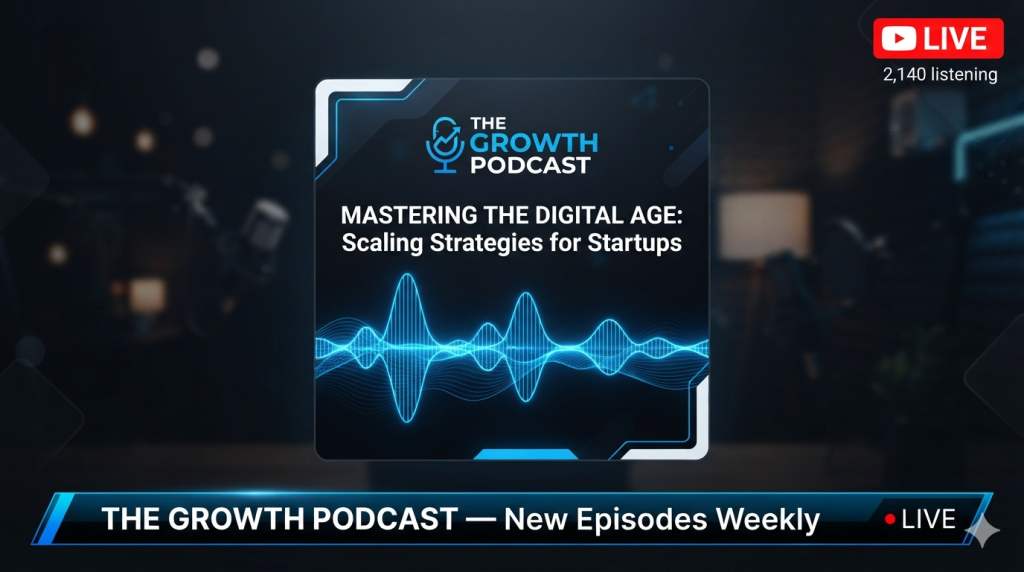
Static branded card. Your podcast logo, episode title, and maybe a waveform animation on a clean background. Simple to produce in Canva or Adobe Express. Works well for interview-style podcasts where the conversation is the content.
Audiogram style. Dynamic waveform visualization that pulses with the audio. Looks professional and shows the audio is active. Tools like Headliner and Descript generate these automatically from audio files.
Video recording. If you record your podcast on video (which you should), use the full video recording as your loop file. This performs significantly better on YouTube than audio-only visuals — faces in thumbnails and in the video itself improve watch time.
Multi-episode compilation card. A branded sequence that shows episode thumbnails and titles as each episode in the loop begins. This makes the stream feel more curated and helps viewers navigate to episodes they want to hear.
2. Build Your Loop Video
For a podcast automated live stream, your loop video is typically a compiled sequence of your recent episodes — 4–10 hours of content before the loop restarts. Use a video editor to sequence the episodes, add transition cards between each (“Up next: Episode 47 — [Title]”), and include your podcast branding throughout.
Export specs:
- Format: MP4, H.264, AAC audio
- Resolution: 1920×1080
- Bitrate: 3,000–4,500 Kbps (podcast content is mostly static visually, so lower bitrate compresses cleanly)
- Audio: 320 Kbps stereo — podcast audio quality is the primary product, don’t compress it
The Right Platform for Podcast Automated Live Streaming
OBS Studio
OBS can loop a video file and stream it to YouTube. The issue for podcast channels is the same as for any 24/7 use case — your PC stays on, OBS crashes on long sessions, and nobody is awake at 4am to restart it. For a podcast channel trying to appear professional and reliable, OBS is not the right long-term setup.
VPS + FFmpeg
Running FFmpeg on a VPS is how technically capable podcasters automate their stream without any local hardware. Cost is low (~$5–10/month), reliability is high, and the podcast content loops indefinitely. The barrier is the command-line setup — not suitable for most podcasters who are content creators first.
StreamKite
StreamKite is the simplest automated live streaming solution for podcast channels. Upload your compiled episode loop, enter your YouTube stream key, and the stream runs in the cloud. No PC on. Auto-reconnect if YouTube drops the connection. Manageable from your phone between recording sessions. For a podcaster focused on creating content — not managing infrastructure — this is the obvious choice.
Step-by-Step: Setting Up Your Podcast Live Stream
Step 1 — Prepare Your Podcast Loop Video
Compile your most recent 5–10 episodes into a single MP4 file. Add episode title cards at the start of each episode so viewers know what they’re listening to. Include your podcast intro/outro around each episode for a consistent broadcast feel.
Step 2 — Configure YouTube Studio
Enable live streaming in YouTube Studio if you haven’t already. Create a new persistent stream titled clearly — “[Your Podcast Name] — Full Episodes 24/7 Live.” Write a complete description listing your podcast topics, key episode titles, and relevant search keywords. Category: People & Blogs or Education depending on your content.
Copy your persistent stream key.
Step 3 — Set Up StreamKite
Get a PassKey at streamkite.live. Log in, open your stream slot, upload your loop video. Paste the YouTube stream key. Set resolution to 1080p and bitrate to 3,000–4,500 Kbps. Start the stream.
Within a minute, your podcast is live on YouTube — automatically, around the clock.
Step 4 — Update the Loop When You Publish New Episodes
Each time you publish a new podcast episode, recompile your loop video to include it. Replace the video in your StreamKite slot. Announce the update via Community Post on YouTube and across your social channels to drive listeners to the stream.
Growing Your Podcast Channel With a 24/7 Stream
Use timestamps in the stream description. List every episode in your current loop with a timestamp. YouTube allows chapter navigation in live stream replays, which helps viewers skip to specific episodes. This dramatically improves watch time per session by letting listeners find content they’re interested in instantly.
Cross-promote to your existing audio audience. Tell your Spotify and Apple Podcasts listeners that you now have a 24/7 YouTube stream. Many podcast listeners prefer having something playing in a browser tab — your YouTube stream serves that use case better than a standalone audio file.
Optimize your stream thumbnail for podcast discovery. Use your host’s face, podcast logo, and episode topic keywords in the thumbnail. Face-featuring thumbnails consistently outperform logo-only thumbnails in click-through rate on YouTube.
Reply to live chat during your normal recording hours. You don’t need to monitor the stream 24/7, but checking the live chat during the same hours you’d normally record and responding to comments builds community and signals to YouTube that the stream has active engagement.
Common Podcast Streaming Mistakes
Poor audio quality in the loop video. Podcast content lives or dies on audio. If your recordings have background noise, inconsistent levels, or weak microphone quality, the live stream will highlight those problems — not hide them. Fix your audio before scaling to a 24/7 stream.
No visual episode navigation. A podcast stream with no visual indication of which episode is playing and when the next one starts feels disorganized. Add a simple episode card at the start of each episode — even just text on a colored background — so viewers know what they’re tuning into.
Letting the loop go stale. A podcast loop that hasn’t been updated in two months tells visitors the channel is inactive. Update regularly and communicate updates to your audience.
Not using the stream description for SEO. The stream description is valuable real estate for YouTube search. List every episode title in your current loop, your podcast’s main topics, and keywords your target audience searches — “business podcast,” “entrepreneurship,” “marketing strategy,” etc.
Comparison: Podcast Streaming Platform Options
| Feature | OBS Studio | VPS + FFmpeg | StreamKite |
|---|---|---|---|
| PC required | ✅ Yes | ❌ No | ❌ No |
| Auto-reconnect | ❌ No | Manual | ✅ Yes |
| Update episodes remotely | ❌ No | ✅ SSH only | ✅ Browser/phone |
| Setup difficulty | Medium | Hard | Very Easy |
| Best for podcasters | Short sessions | Tech-savvy only | ✅ Yes |
FAQ — Automated Live Streaming for Podcast Channels
1. Does YouTube count podcast live stream watch time the same as video watch time?
Yes. Live stream watch time counts toward your YouTube Partner Program watch hour requirement (4,000 hours). It also counts in your overall channel analytics. Running a continuous podcast live stream can significantly accelerate your path to monetization, especially if your episodes are long-form (60+ minutes each).
2. Should I record my podcast on video as well as audio?
Yes, if growing on YouTube is a priority. Video podcast recordings outperform branded static cards on YouTube — face thumbnails have higher click-through rates, and viewers stay longer when there’s something to watch. Even a simple two-camera setup (or a single webcam) is sufficient for a YouTube-optimized podcast recording.
3. Can I run my podcast as both an upload and a live stream?
Absolutely. Many podcasters publish each new episode as a YouTube upload (for VOD SEO) and also include it in the loop video that runs on their 24/7 live stream. You get both the search visibility of uploads and the watch-time and algorithm benefits of continuous live streaming simultaneously.
4. What podcast topics perform best on YouTube Live?
Business, entrepreneurship, personal development, true crime, and health/wellness consistently perform well. YouTube’s search volume for podcast-format content in these categories is high. Niche topics with dedicated communities (investing, specific programming languages, specific sports) often have better conversion rates than broad topics with more competition.
5. How many episodes should I include in my podcast live stream loop?
Enough to fill 4–8 hours before the loop restarts. For an hourly podcast, that’s 4–8 episodes. For a 30-minute format, 8–16 episodes. The goal is that a listener who tunes in for a 2-hour session experiences content variety rather than hearing the same episode twice.
6. Can I monetize a podcast live stream if I discuss copyrighted content?
Commentary, analysis, and criticism of copyrighted works may fall under fair use, but YouTube’s Content ID operates automatically and doesn’t make fair use determinations — it just flags matches. To avoid claims, either use original content throughout, or discuss/analyze media without directly broadcasting it. Consult a media attorney if your podcast format involves significant use of third-party content.
7. What’s the best way to announce my podcast live stream to existing listeners?
Email newsletter, social media posts (Twitter/X, LinkedIn, Instagram depending on your niche), and direct announcements at the start of your next episode. Tell listeners specifically what’s on the stream right now — “Episode 47 is currently live on our YouTube stream” drives more clicks than a generic “we have a YouTube now.”
8. Do I need to be live during my podcast stream to respond to comments?
No. The stream runs automatically 24/7. You choose when to check and engage with live chat. Many podcasters check comments during their normal working hours and ignore the stream overnight. Using YouTube’s automated spam filters and setting up slow mode in the live chat manages moderation without constant supervision.
Start Your Podcast’s 24/7 YouTube Stream Today
Your podcast is already being recorded. The content is already there. Running it as a 24/7 automated live stream on YouTube is the lowest-effort way to build a YouTube presence without creating any additional content.
StreamKite lets you run a 24/7 live stream from any device without keeping your PC on. No technical knowledge needed. Setup takes under 5 minutes.
Start your 24/7 loop stream today
Run a nonstop YouTube live stream from any device.
No PC required. No technical knowledge needed.
